Create, Edit, and Start Phases (and Update Requirement Statuses)
Project > Phase
Use the Phase workspace to define project phases, adjust phase details, start phases by loading requirements, and track progress via Build Status and Review Status at the requirement level. This workflow shows how to add a new phase, edit existing phases, update statuses inside a phase, and start a subsequent phase by copying/loading requirements from a prior phase.
How It Works
-
Open the Phase workspace for your project
From your project navigation, select the “Phase” tab to view the phase timeline/board for the selected stream.
Takeaway: If you are creating phases for the first time in this project, then the tab will be empty.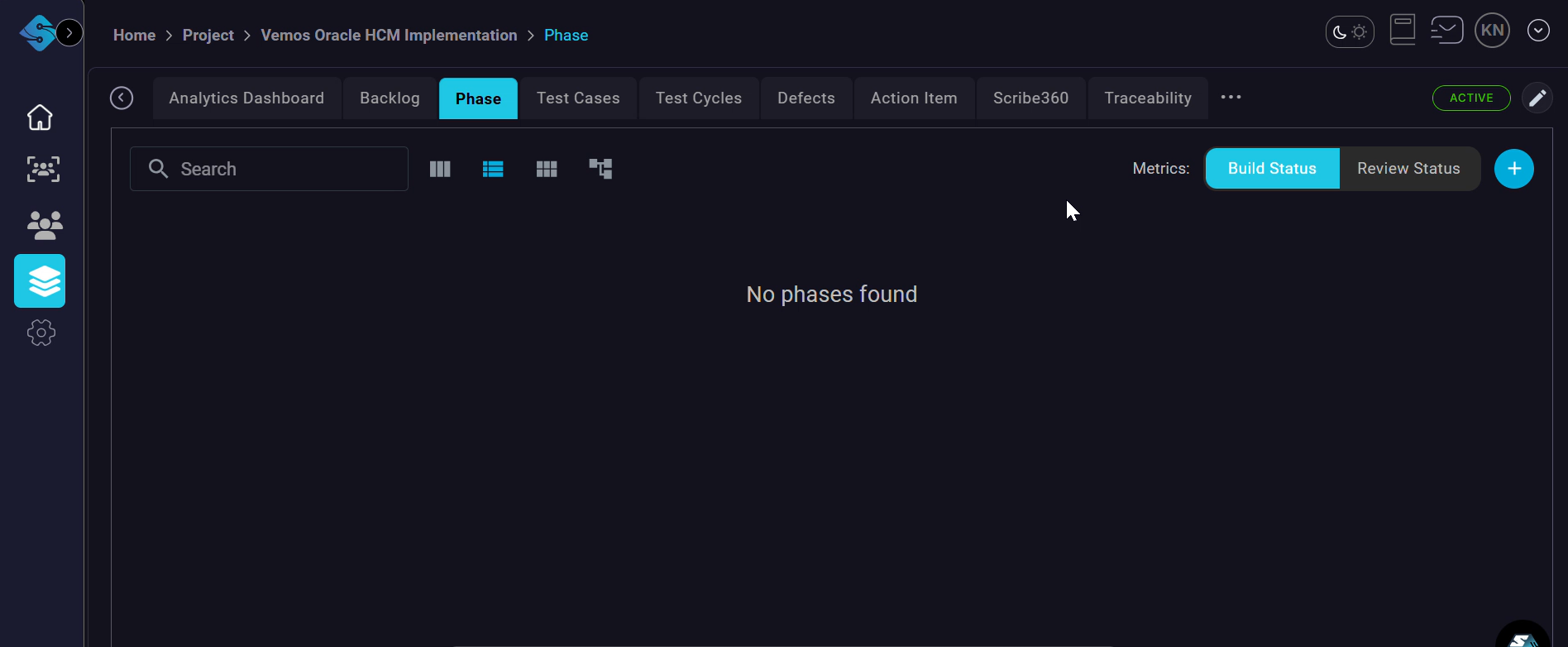
-
Start adding a new phase
Click the plus (+) button on the right side of the Phase view to add a new phase.
Takeaway: Use consistent naming (e.g., CRP1/CRP2/SIT/UAT) so phases sort and report cleanly.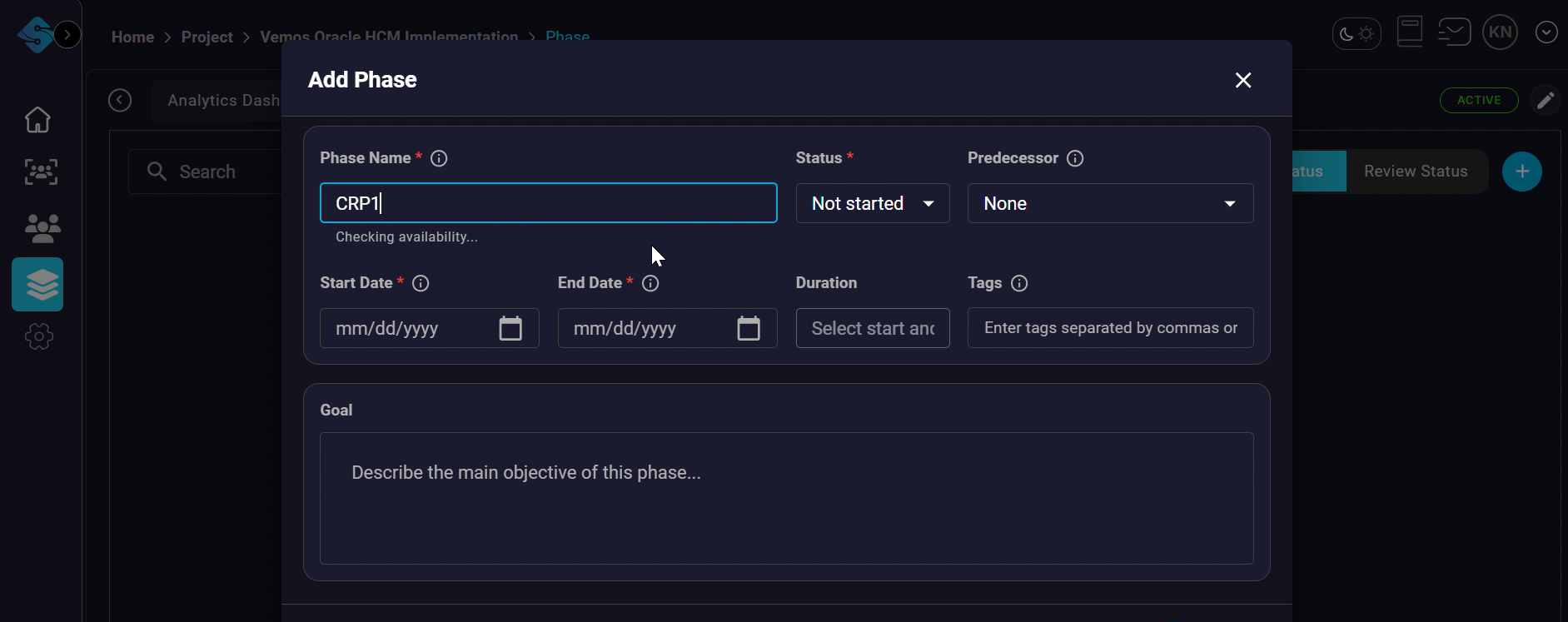
-
Fill in phase details and create the phase
In the “Add Phase” modal, enter the Phase Name, Status, Predecessor (if applicable), Start Date, End Date, and any Tags/Goal. Click the create/confirm button to save the new phase.
Takeaway: Set a predecessor to enforce sequencing and make the timeline dependencies clearer for stakeholders.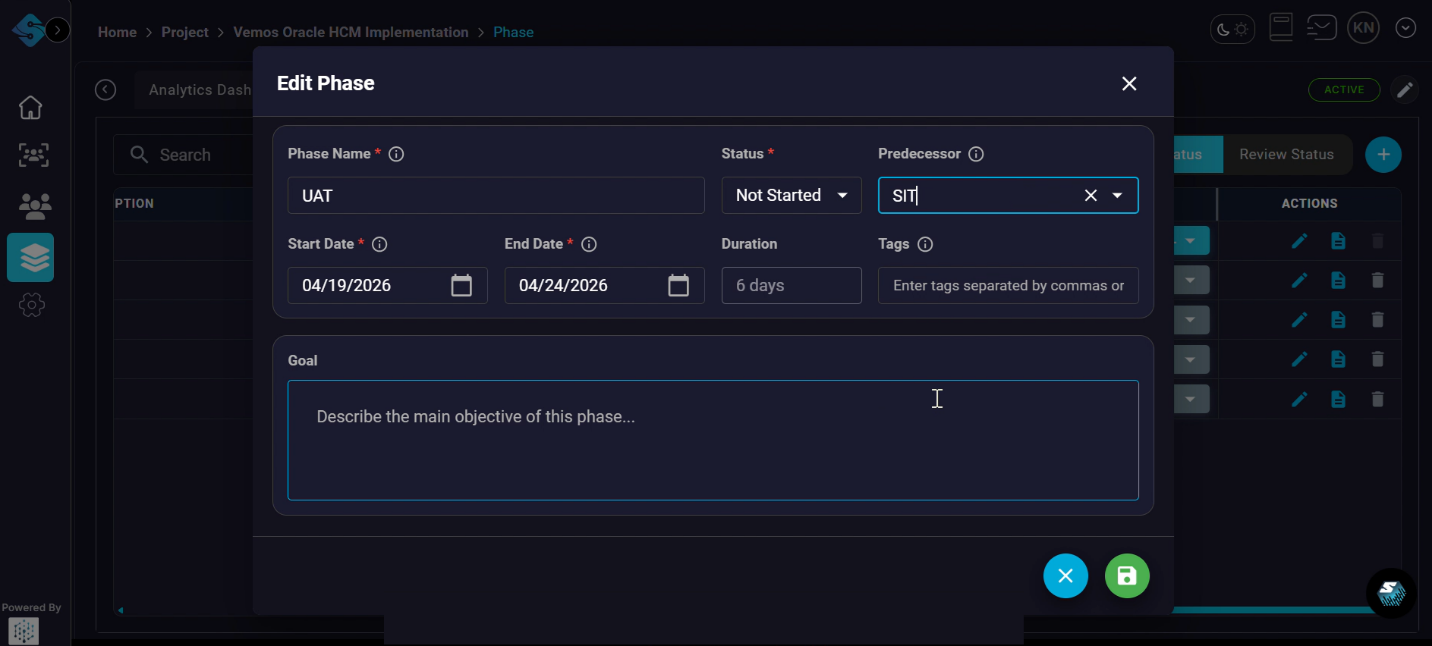
-
Edit an existing phase (update name, dates, or metadata)
Click on the edit phase icon (under actions) to update fields like Phase Name, Status, Predecessor, and dates, then click the save (disk) icon to apply changes.
Takeaway: When adjusting dates, confirm the duration aligns with downstream phases to avoid overlap or gaps in reporting. -
Repeat edits for other phases as needed
Open another phase in edit mode, adjust details (for example, CRP3 start/end dates), then save.
Takeaway: Use Tags to label phases by release/train, region, or test cycle to improve filtering later. -
Verify phases appear on the Phase board/timeline
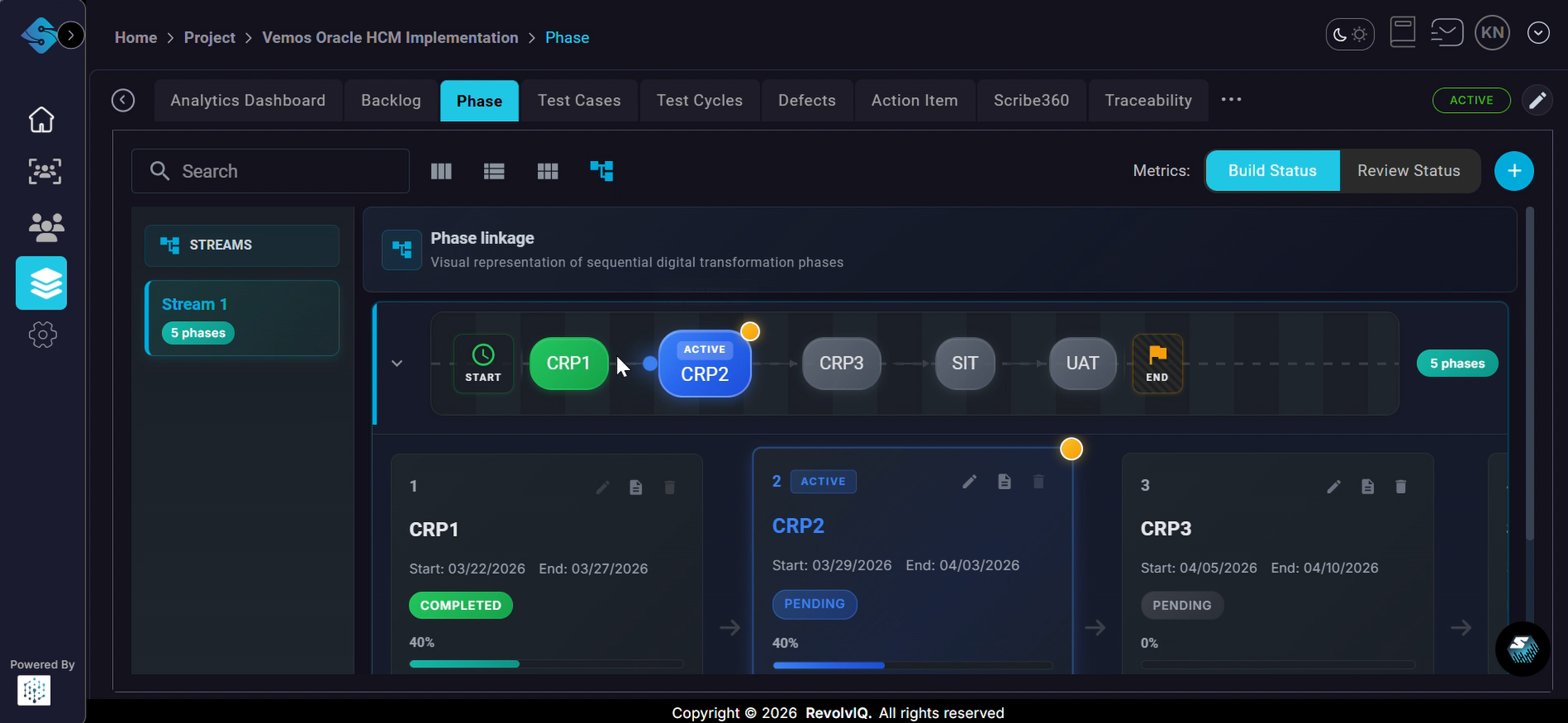
Return to the Phase board to confirm the phases are listed in the stream and visible on the timeline (e.g., CRP1, CRP2, CRP3, SIT, UAT).
Takeaway: Use the phase pills on the timeline to quickly jump between phases and compare status at a glance. When in this view you can click on the ‘Build Status’ and ‘Review Status’ options to view the details for all the phases.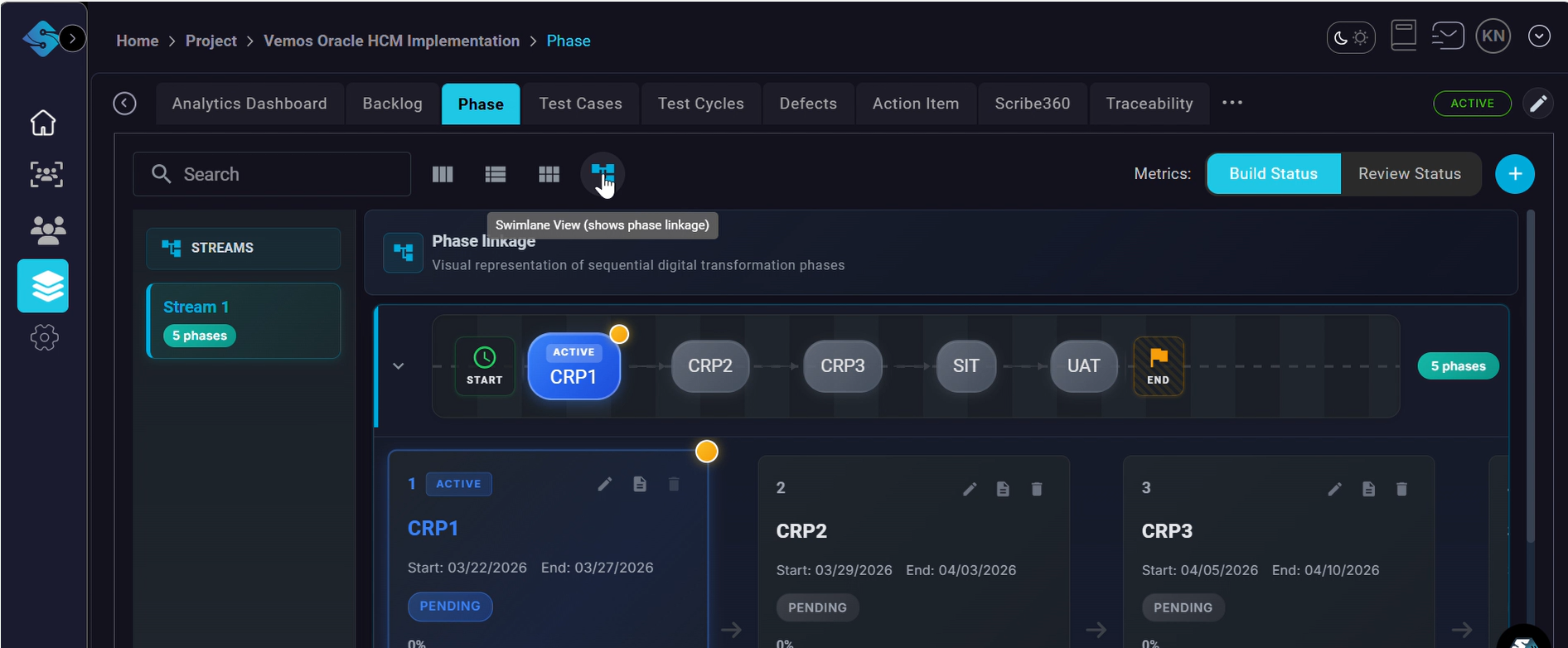
-
Update Build Status for requirements within a phase
Open a phase (e.g., CRP1) to view its requirements. In the Build Status column, open the dropdown for a requirement and select the new status (Not Started, In Progress, Build Complete, Delivered).
Takeaway: Standardize what each Build Status means for your team (e.g., “Build Complete” includes unit testing) to keep metrics consistent.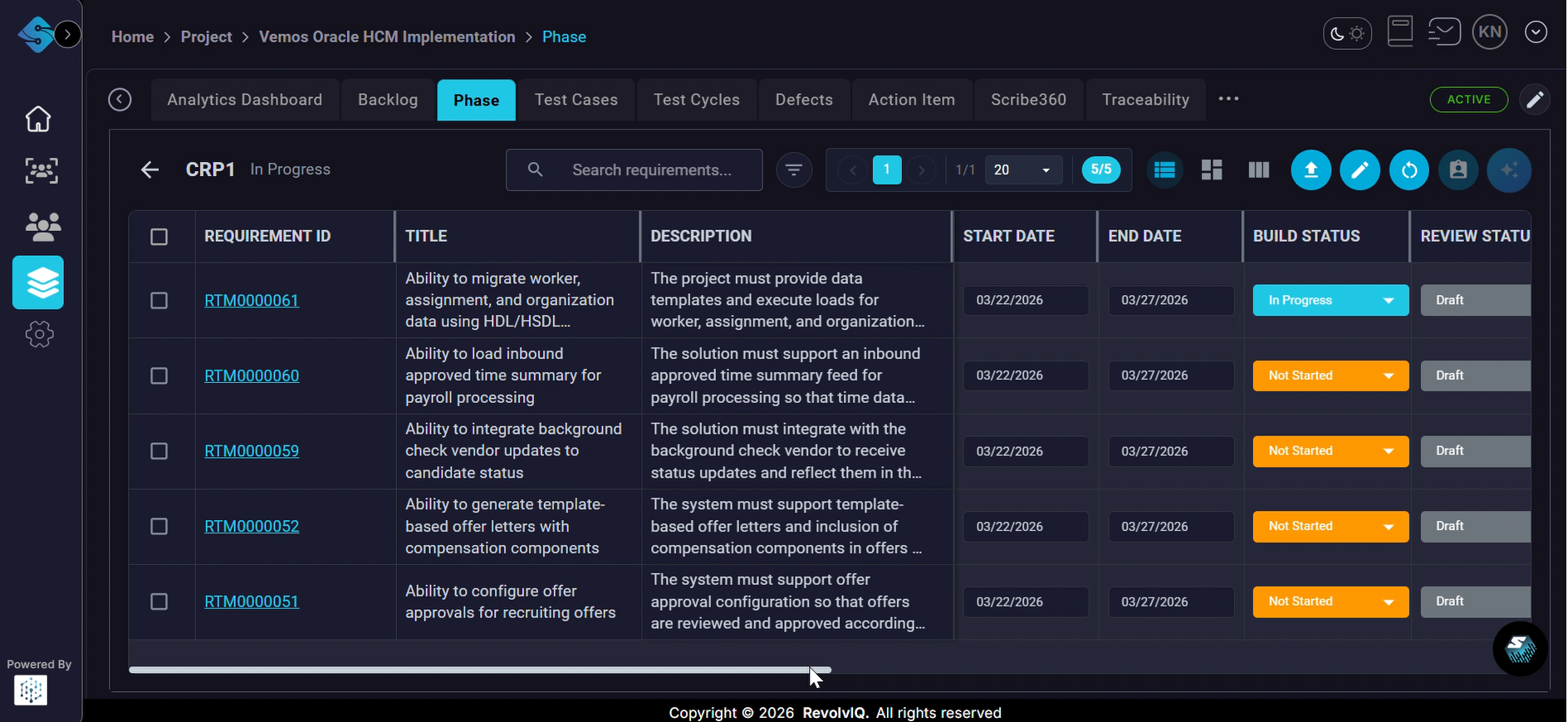
-
Confirm the Build Status change saved
After selecting a Build Status value, look for the success notification and verify the updated status label appears in the row.
Takeaway: A toast message will appear for Build status or Review Status changes. -
Complete the current phase and then start the next phase
Navigate to the phase List view. Set status of current phase to ‘Completed’. Then start the next phase.
Takeaway: Starting a phase by copying requirements is useful for iterative cycles (CRP1 → CRP2) without rebuilding the backlog each time.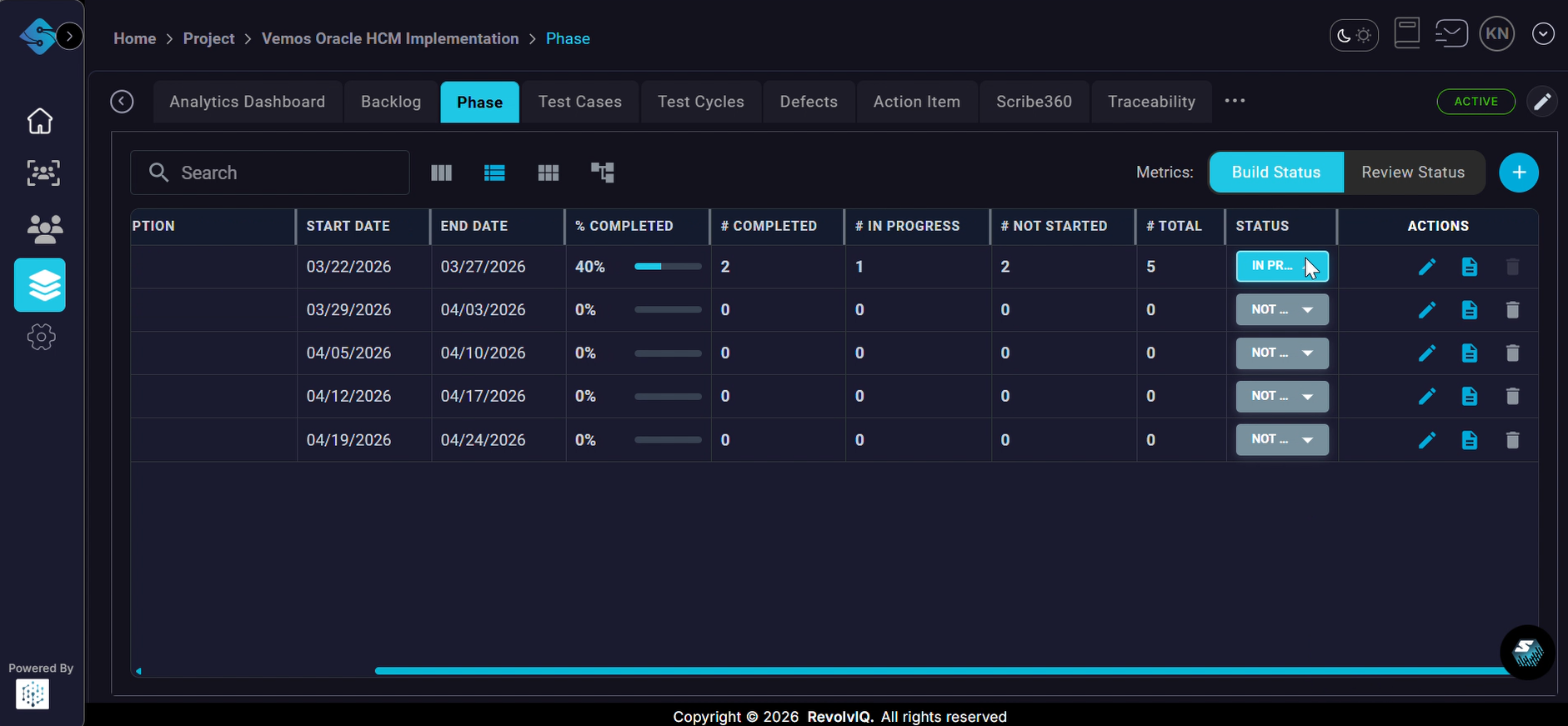
-
Start the phase and load/copy requirements from the previous phase
Use the phase start action (or an import workflow) to copy requirements forward. Copying the Build and Review Status for the requirements from the predecessor phase is optional and not set by default. Confirm the operation by watching for the success messages and the requirement rows populating the grid.
Takeaway: After copying, spot-check a few requirements to ensure dates/statuses carried over as expected and adjust any fields that should reset for the new phase.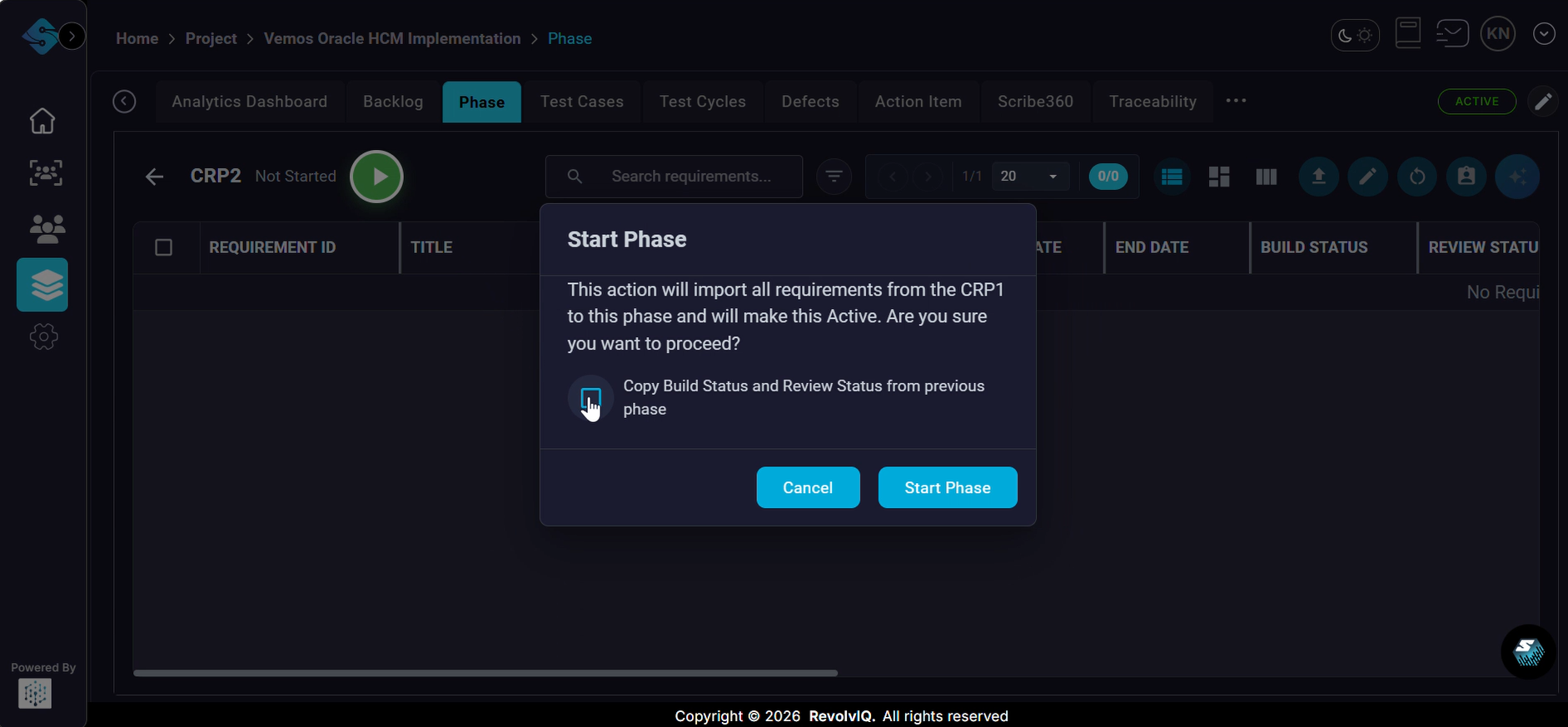

-
Use Import from Backlog if you need to add more requirements
From the phase requirements view toolbar, click the import control and choose “Import from Backlog” to bring in additional items.
Takeaway: Import in small batches and validate ownership/status fields to prevent noisy reporting (e.g., too many items stuck in Draft).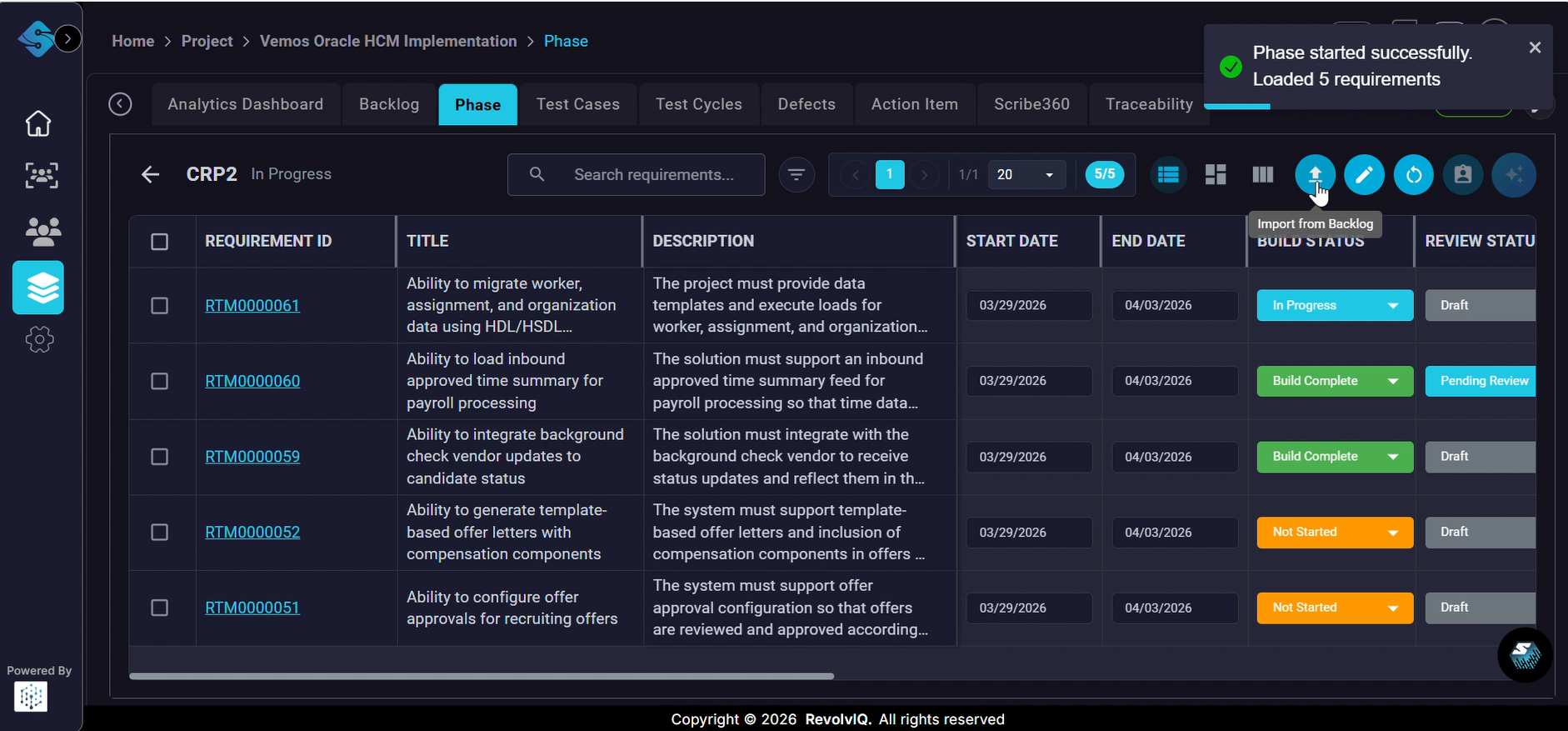
-
Return to the Phase board to review progress rollups
Go back to the Phase board to see updated rollups (e.g., completion/progress percentages and counts per phase card).
Takeaway: Use rollups to drive weekly status: call out Build Complete vs In Progress counts to focus the team on clearing bottlenecks.