Generate RTM Entries from an SOW
This walkthrough shows how to import a Statement of Work (SOW) into the project Backlog and automatically generate RTM (Requirements Traceability Matrix) entries. You’ll upload the SOW file, let the system analyze it, and then review the generated RTM entries once processing completes.
How It Works
-
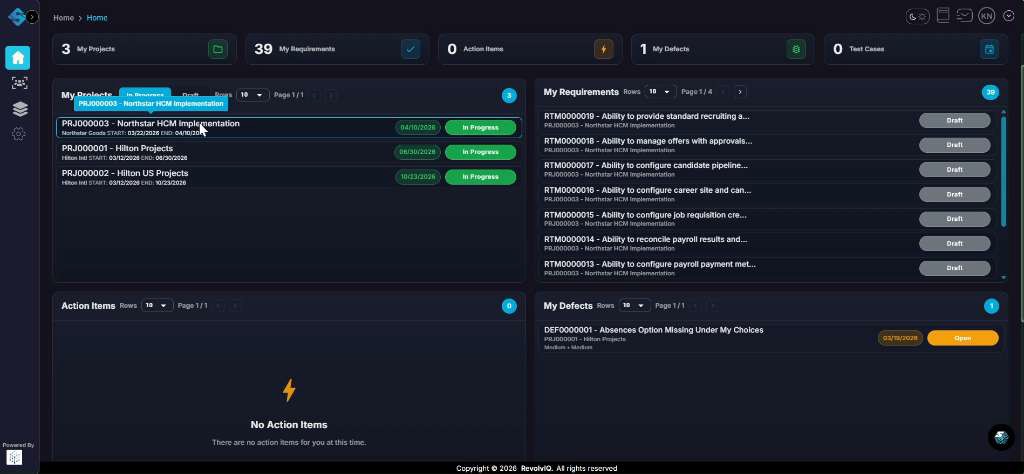
Open your project from the Home page and navigate to the Backlog area
From the dashboard, navigate to the Backlog area where RTM generation options are available.
-
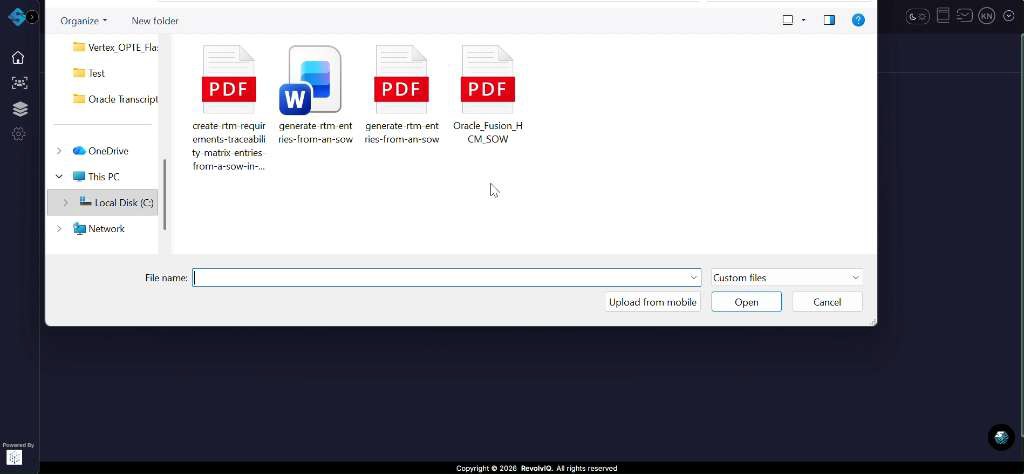
Upload the SOW file
Choose the option to create from SOW, then in the file picker select your SOW document and click “Open” to upload it.
-
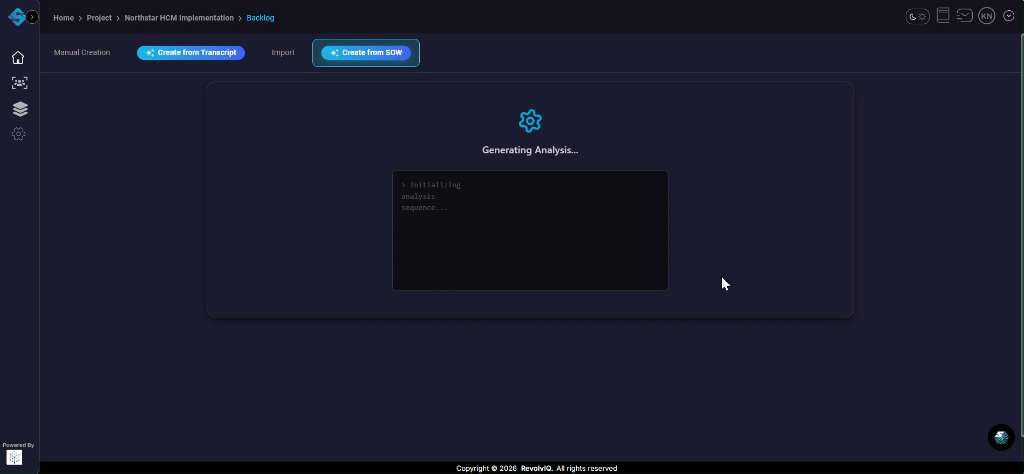
Wait while the system generates the initial analysis
After upload, the Backlog shows a “Generating Analysis…” state. Keep the page open while the analysis continues.
-
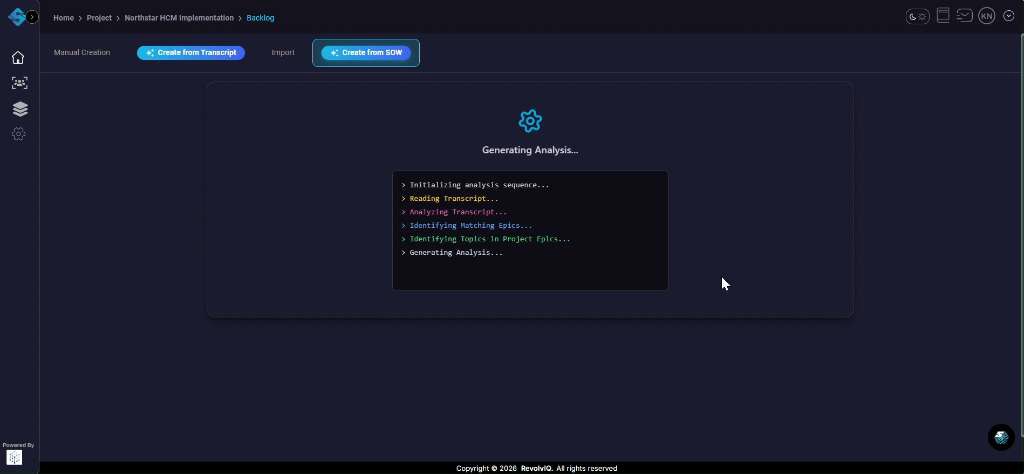
Monitor analysis progress as transcript/SOW content is parsed
Watch the status log as it reads and analyzes the source content, identifies relevant sections, and prepares the generation pipeline.
-
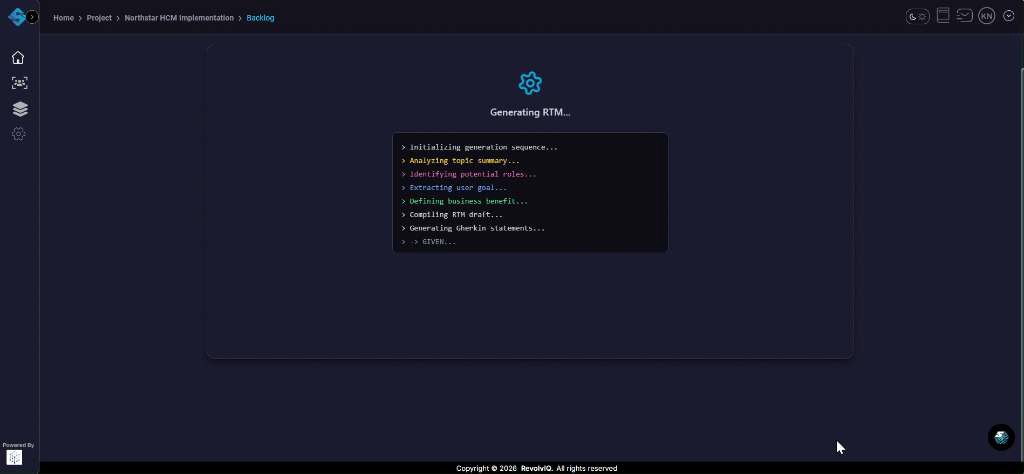
Wait while RTM entries are generated
The system switches to “Generating RTM…” and runs steps such as extracting goals, defining business benefits, compiling the RTM draft, and generating Gherkin statements.
-
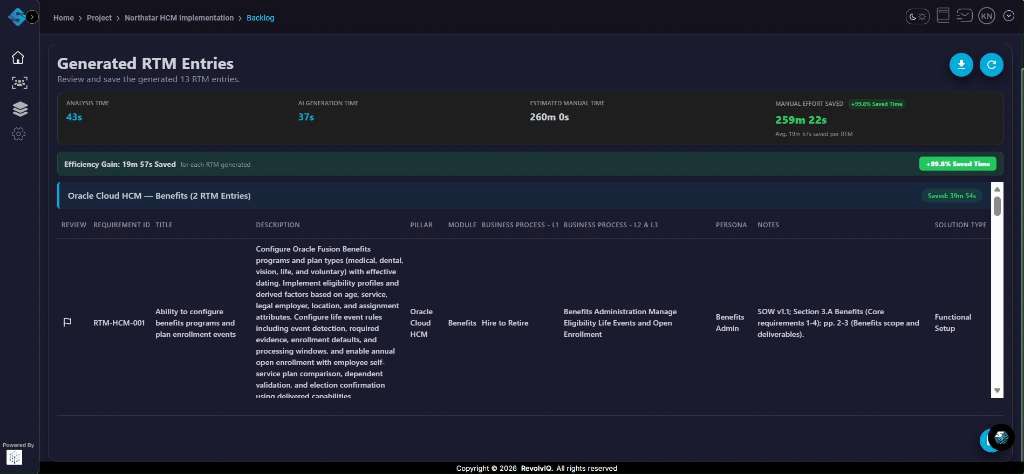
Review the generated RTM entries and save/export as needed
Once complete, view the “Generated RTM Entries” table to review each entry’s requirement/title, description, pillar/module, persona, and source mapping. Use the available actions (e.g., download/export) to save the results or proceed to refinement.
What You Get
Each generated RTM entry includes a requirement title, description, pillar/module assignment, persona mapping, and source reference — giving you a structured, traceable backlog derived directly from your Statement of Work.