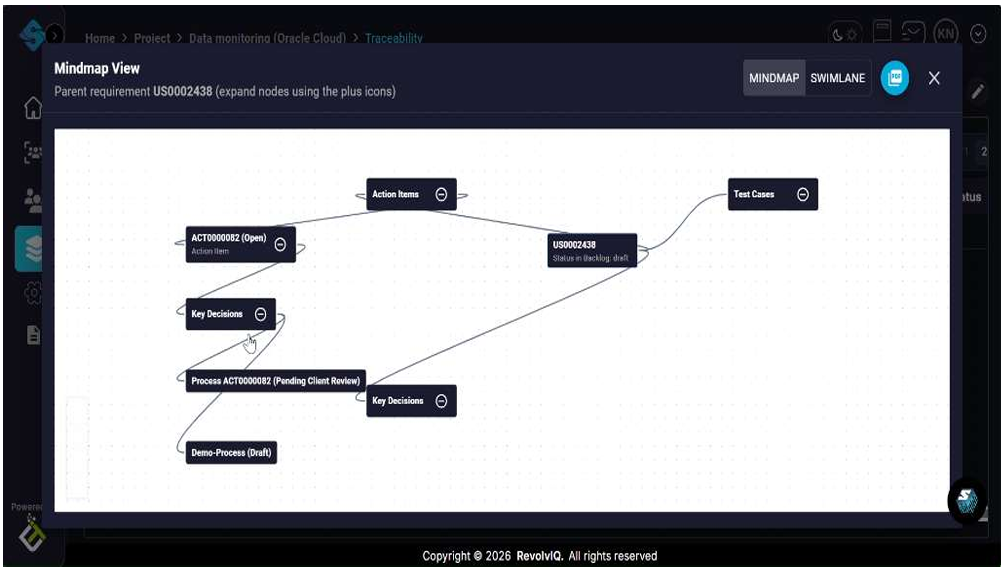
View Requirement Traceability in Mindmap and Swimlane Views
Use the Traceability tab to explore how a parent requirement connects to downstream work items (child requirements, action items, test cases, and key decisions). Start from the Parent Requirements list, load a parent’s children, then open the interactive visualization. Switch between Swimlane View (lane-based flow) and Mindmap View (node-and-branch view). Expand relationships tree by clicking on the + sign.
How It Works
-
Open the Traceability workspace
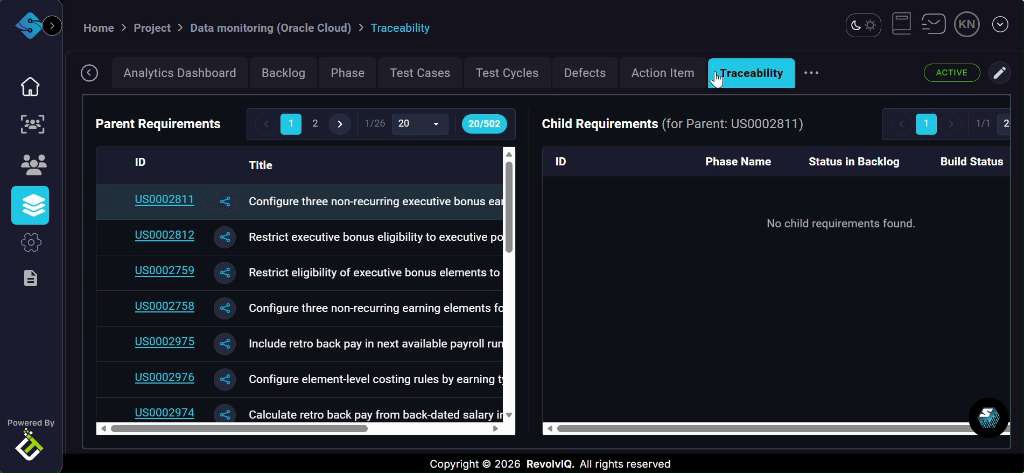
From the top navigation, click the Traceability tab to display the split view with Parent Requirements on the left and Child Requirements on the right.
-
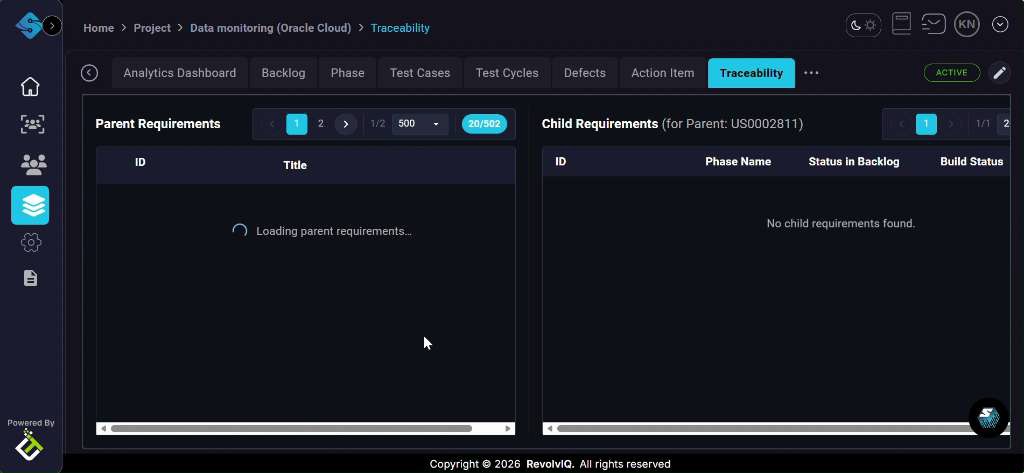
Wait for the Parent Requirements list to load (if needed)
If the parent list is still loading, wait until the spinner completes and the requirement rows appear.
-
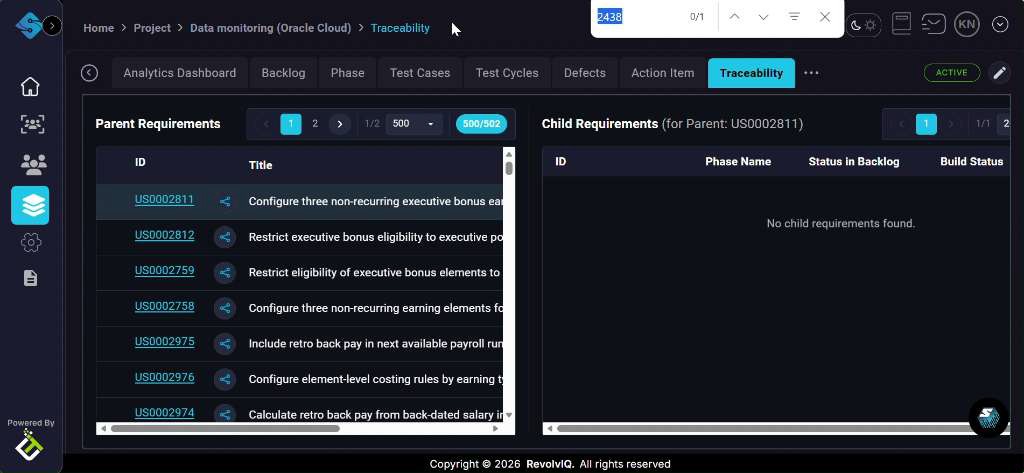
Select a parent requirement
In the Parent Requirements table, click a parent requirement ID to view its details.
-
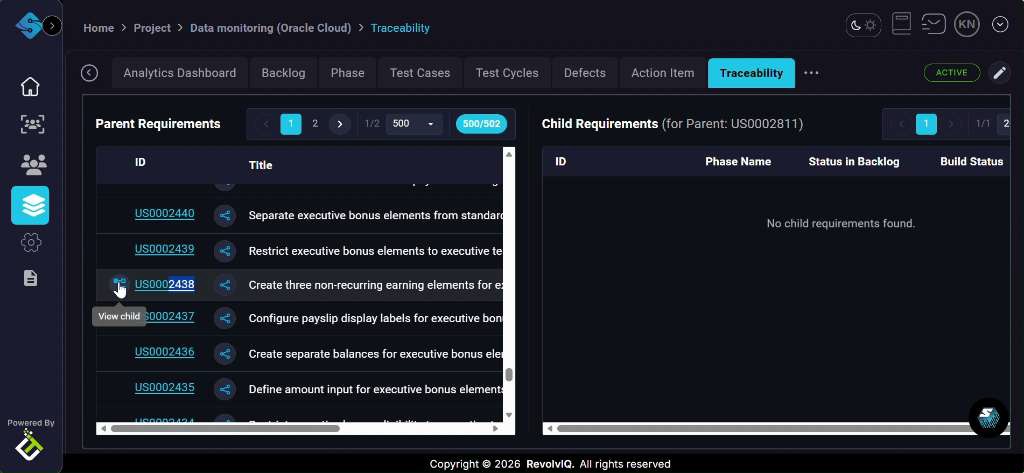
Use the row actions to view child links
Hover over the parent requirement row and click the “View child” icon to load linked child items for that parent.
-
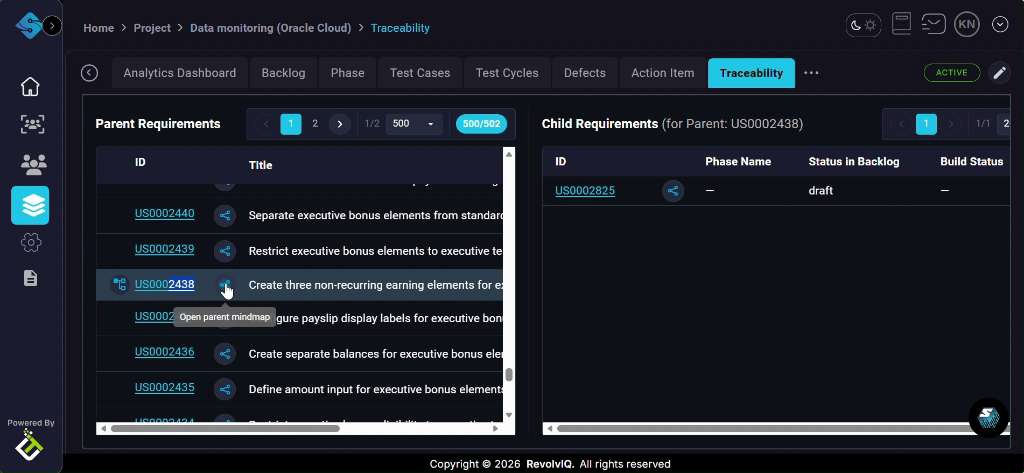
Confirm child requirements are loaded for the selected parent
Check the Child Requirements pane to verify it now lists at least one child item (with status/build columns).
-
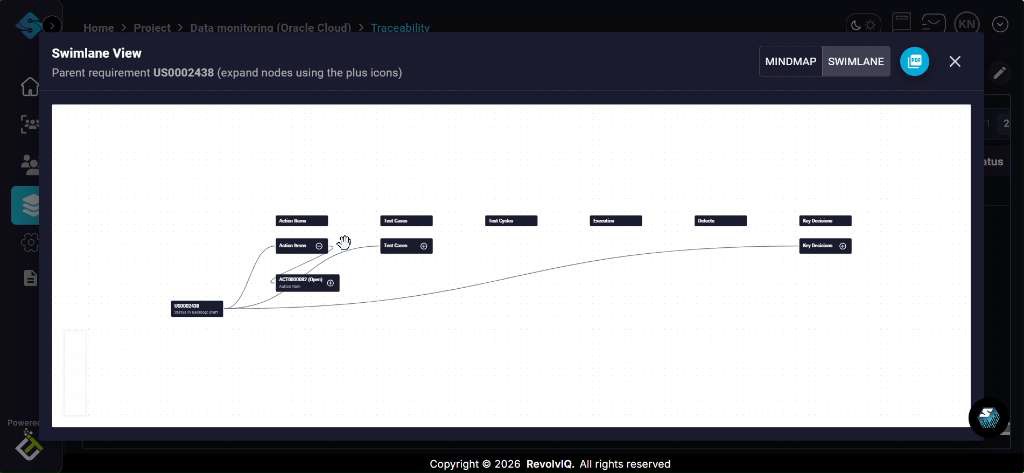
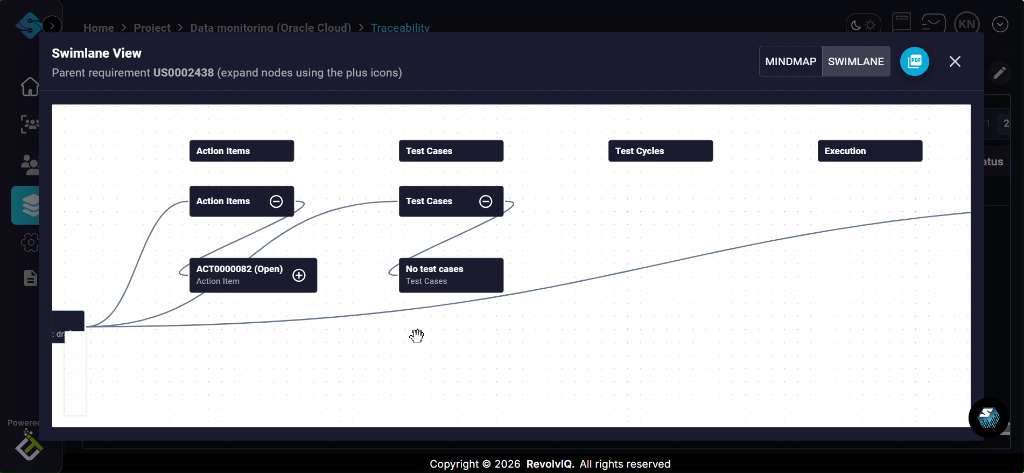
Open the visualization in Swimlane View
Open the traceability visualization to see the relationship flow across lanes (Action Items, Test Cases, Test Cycles, Execution, Defects, Key Decisions).
-
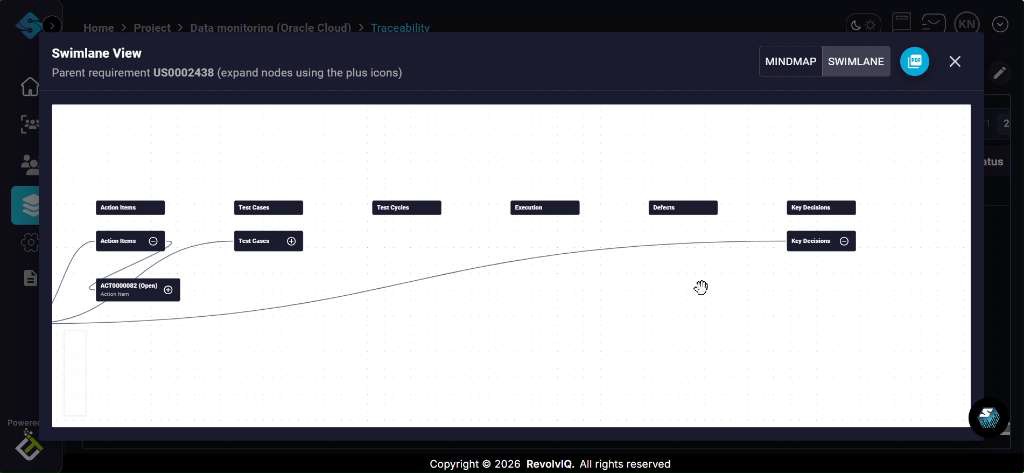
Pan/scan the swimlanes to review upstream and downstream items
Move across the lanes to review what exists for each category and where connections lead.
-
Expand a node to reveal more linked work items
Click the + control on a node (for example, an Action Item) to expand and display additional linked items under that node.
-
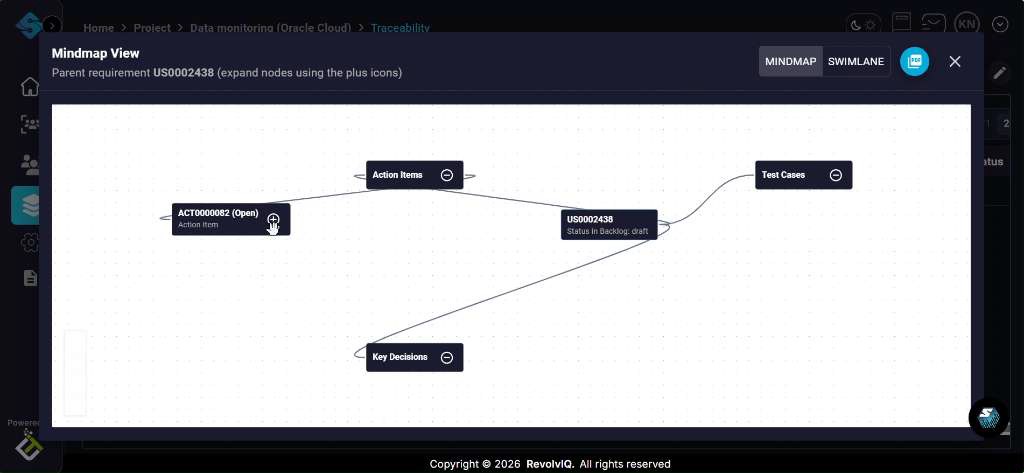
Switch to Mindmap View
Click MINDMAP to change from swimlane-based layout to a branching mindmap centered around the parent requirement.
-
Expand branches in the mindmap to see deeper relationships
Click on the ‘+’ symbol to view processes or additional key decisions.