Create a Defect with AI and Generate an AI Defect Summary
This guide shows how to create a defect using an AI assistant directly from a failed test case step in a Test Cycle, then navigate to the Defects module to review the created record and generate an AI-written defect summary (executive, comprehensive, or both).
How It Works
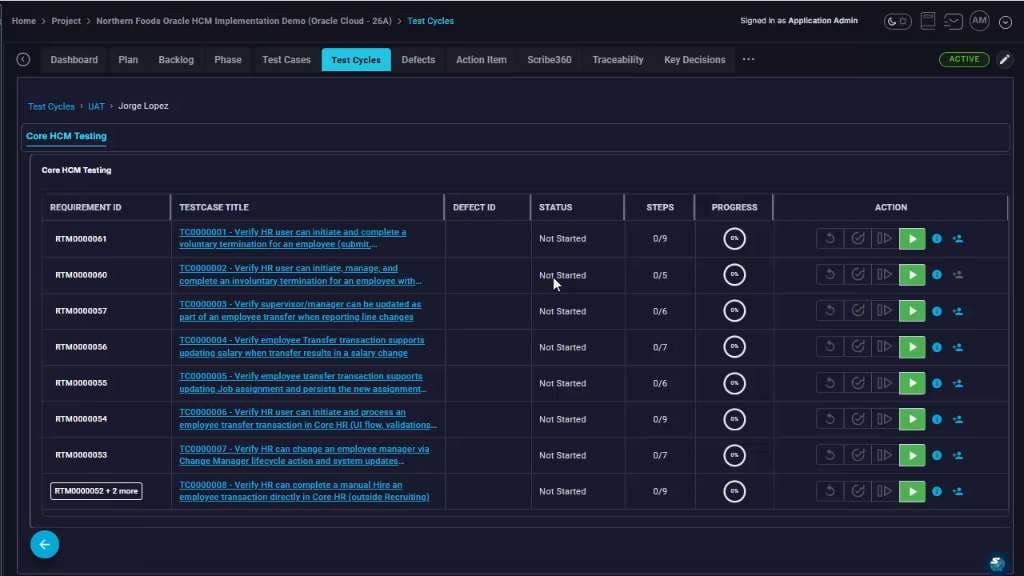
Open the Test Cycles list and choose the test case you're executing
From the project workspace, go to the Test Cycles tab and locate the relevant test case row in the cycle. Use the Action controls on the right of the row to begin execution or open the test steps for that test case. Takeaway: If your defect is tied to a specific requirement, start from the test case in the cycle so the defect can inherit traceability (test case ID, run context) automatically.
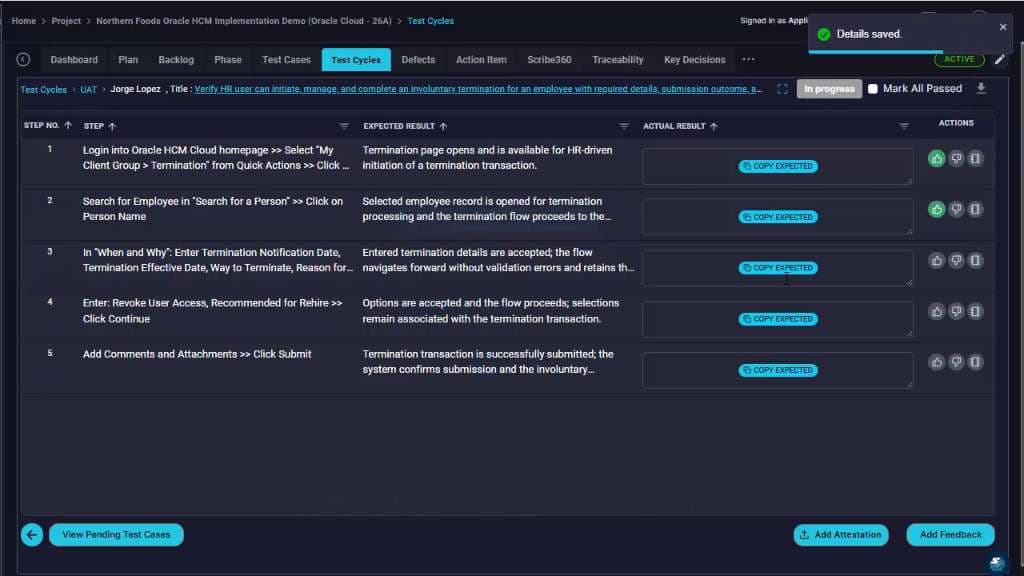
Run the test and identify the failing step to report
In the test execution view, review the Steps list and Expected Result for each step. When you hit the step that exposes the problem, use the step-level Actions (right side) to initiate defect creation for that specific step/run context. Takeaway: Capture the defect at the step where the mismatch occurs; it produces a cleaner defect narrative and reduces back-and-forth during triage.
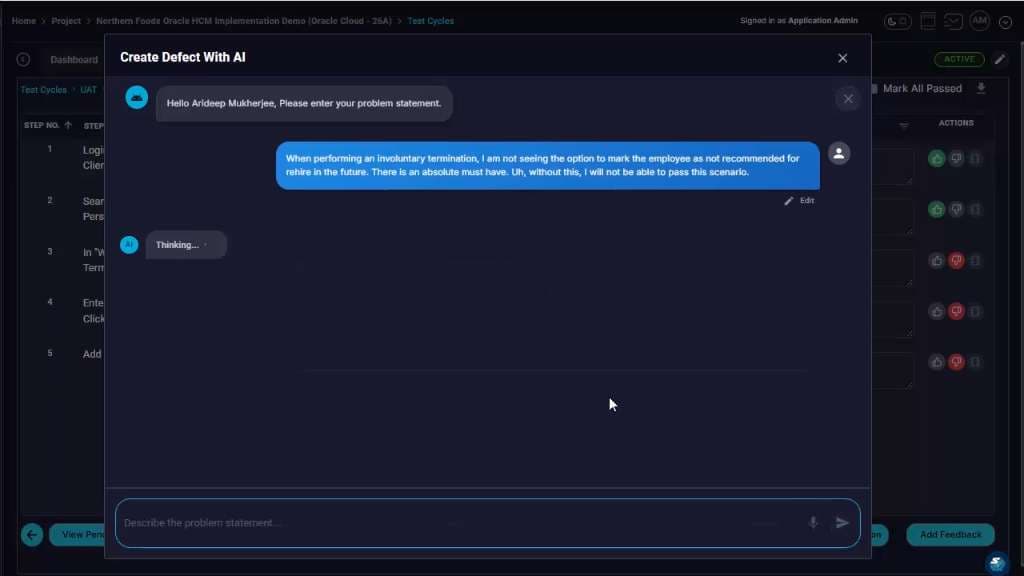
Launch Create Defect with AI and describe the problem in plain language
When the AI defect dialog opens, enter a short, clear statement of what's wrong and why it blocks the scenario (what you expected vs what you actually see). Submit the prompt to let the AI draft the defect content. Takeaway: Include where in the flow it happens, the exact missing or incorrect UI option, and the business impact (e.g., cannot complete involuntary termination).
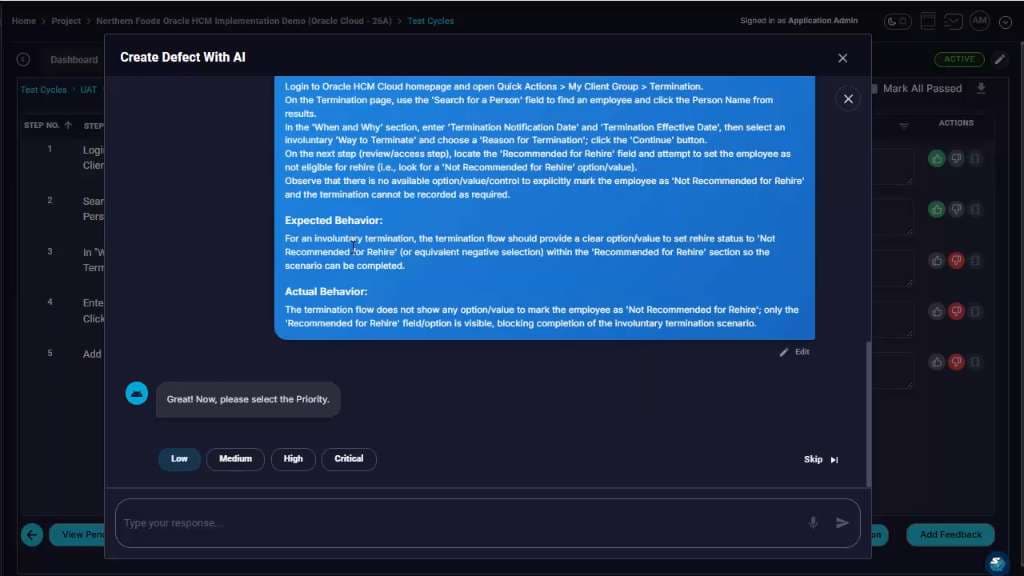
Review the AI-generated defect narrative and set a Priority
Read the AI's expanded write-up (steps to reproduce, expected behavior, actual behavior). If it's accurate, choose a Priority (Low/Medium/High/Critical) to match impact and urgency, then continue. Takeaway: If the AI missed a key detail (field name, page, role, or environment), use Edit before selecting priority so the created defect requires minimal cleanup later.
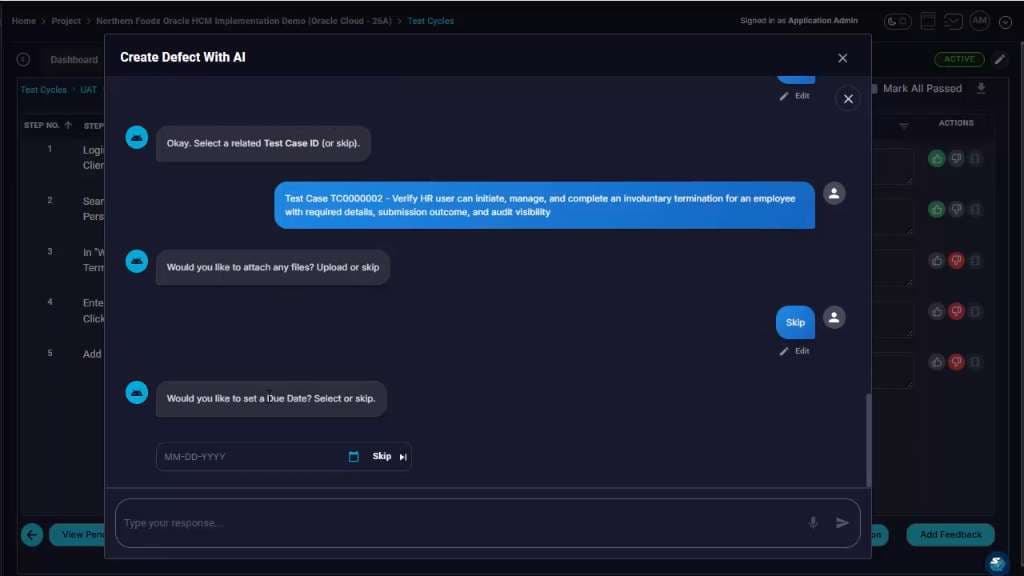
Link the defect to the related Test Case ID and optionally add attachments/due date
When prompted, select the related Test Case ID to ensure traceability. Then either upload supporting files (screenshots, logs) and set a due date, or choose Skip to proceed without them. Takeaway: Even if you skip attachments initially, linking the defect to the test case is the critical step that preserves downstream reporting and traceability.
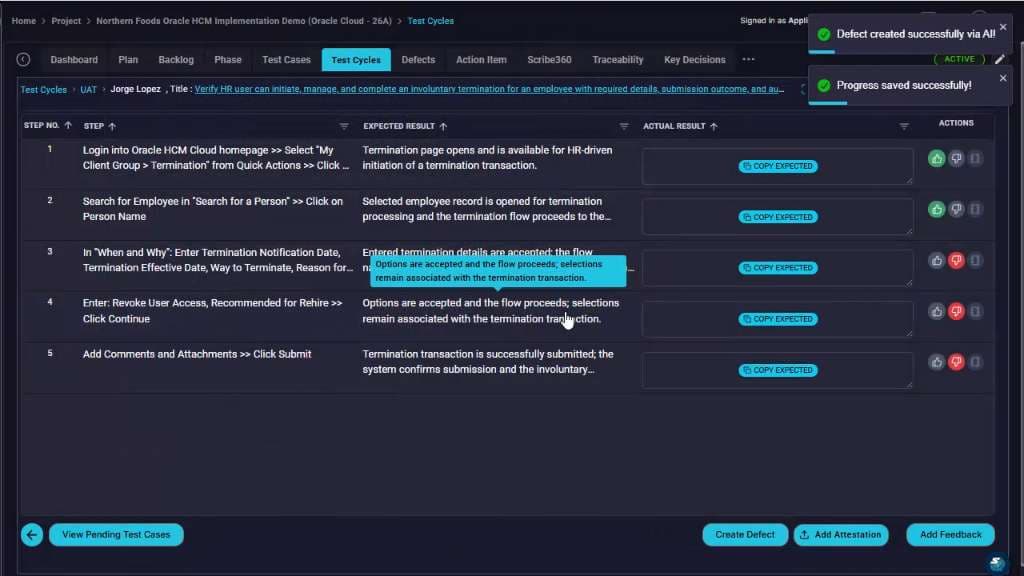
Confirm the defect was created and return to the test execution view
After submission, verify the confirmation toast indicating the defect was created successfully via AI. You can then continue the run or navigate to Defects to review the new record. Takeaway: The confirmation is your handoff point from execution into defect management; the failed test context has now been captured as a structured defect.
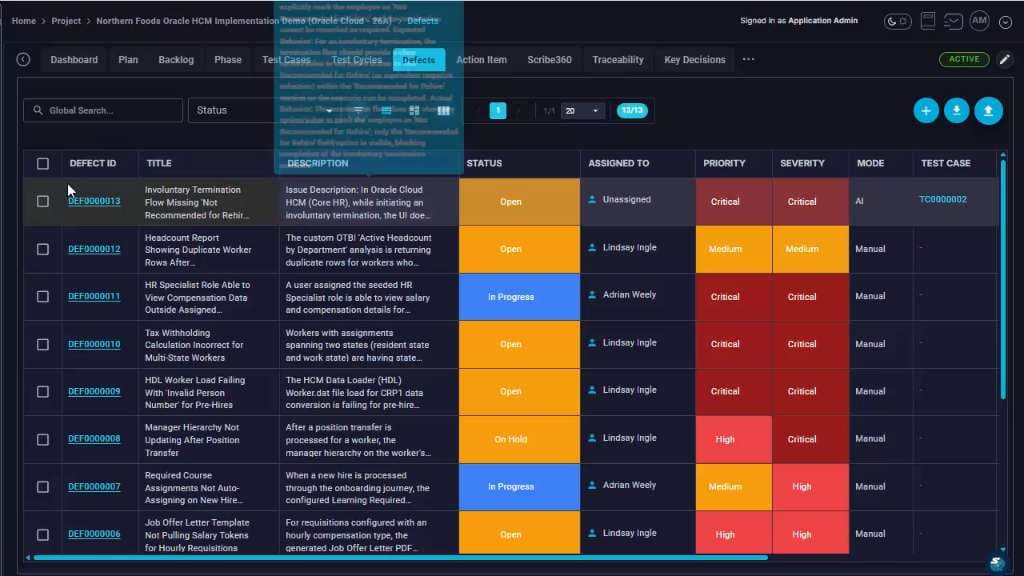
Open the Defects module to find the newly created AI defect
Navigate to the Defects tab/module. In the defects grid, locate the new defect (often near the top if sorted by recent) and confirm it is linked to the correct test case and marked as AI in the Mode column. Takeaway: Use the grid to verify the AI-created defect landed in the shared defect workflow, not just inside the test execution screen.
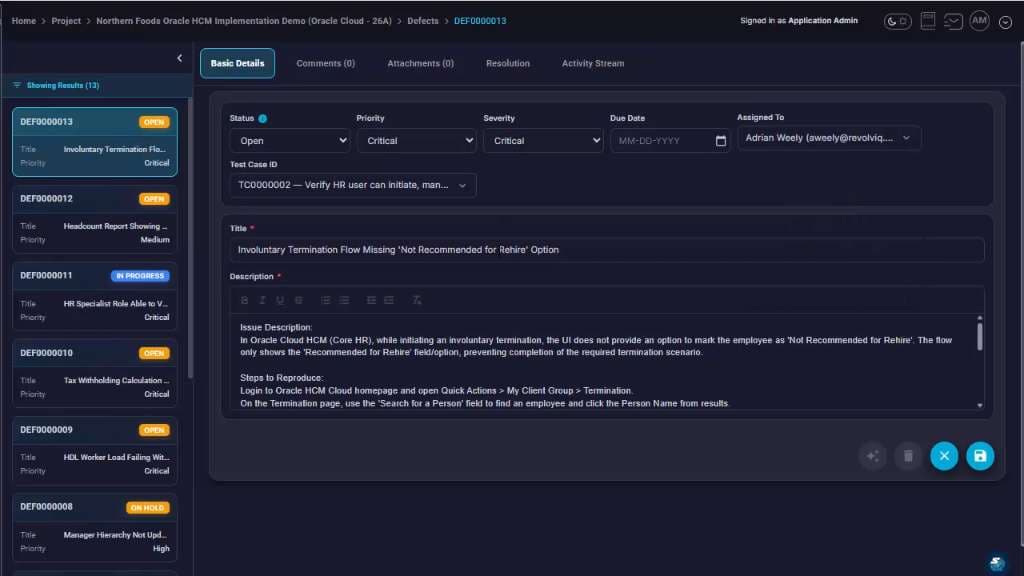
Open the defect and validate the AI-populated fields
Click the defect ID to open the record. Review Status, Priority, Severity, Assigned To, linked Test Case ID, Title, Description, and Steps to Reproduce to ensure they match what happened during execution. Takeaway: A quick review keeps AI assistance high quality: validate the generated fields before relying on the defect for triage or reporting.
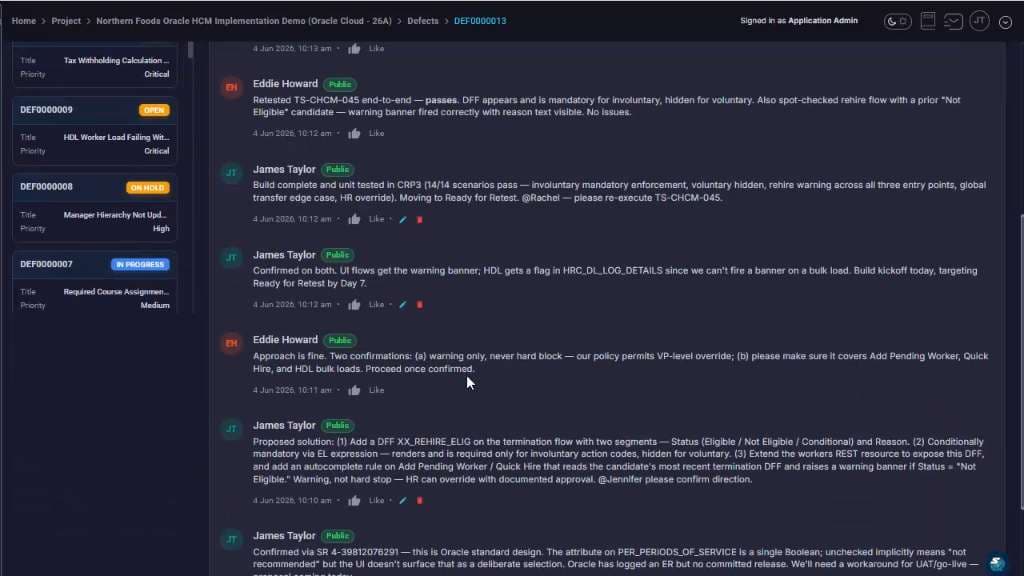
Review discussion history and proposed solution details (optional)
Switch to the Comments (or activity/discussion) area to see collaboration notes, investigation updates, and proposed solutions. Add clarifications or confirm reproduction details as needed. Takeaway: Comments and proposed solutions turn the defect from a static ticket into a collaborative resolution thread.
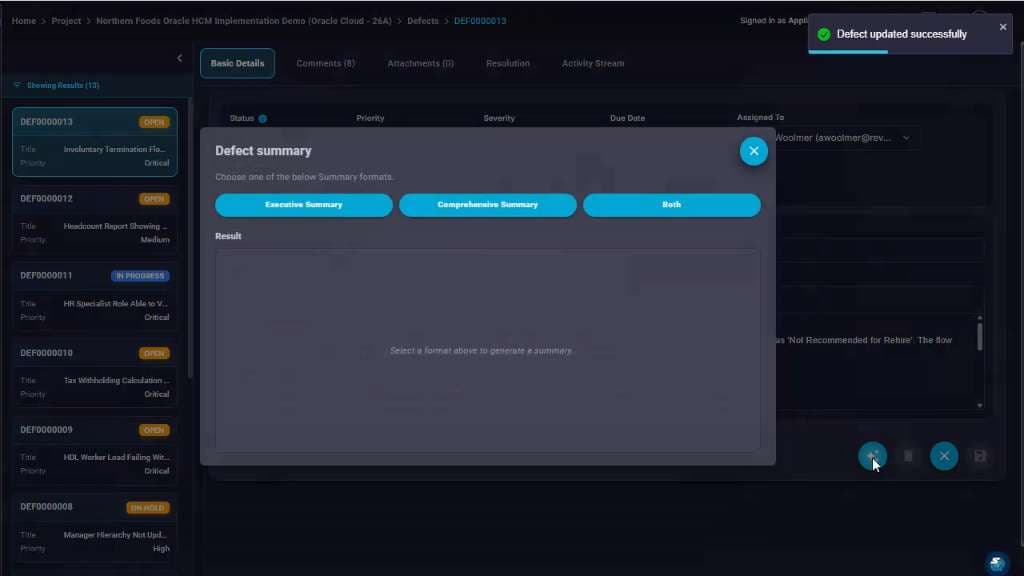
Open the AI Defect summary generator
From the defect record, open the Defect summary dialog and choose the summary format you want generated: Executive Summary, Comprehensive Summary, or Both. Takeaway: Select the format based on audience: executive for leadership, comprehensive for triage/handoff, or both when you need each level of detail.
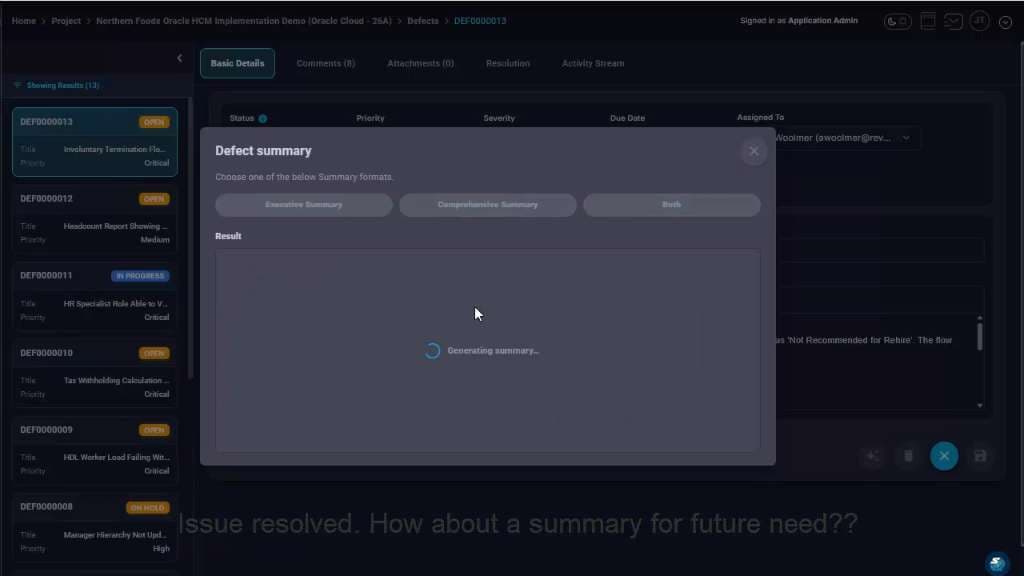
Wait for the AI to generate the summary
After selecting a summary type, allow the generator to run. Keep the modal open until generation completes. Takeaway: The summary is generated from the defect context, so keeping the record complete before this step improves the final output.
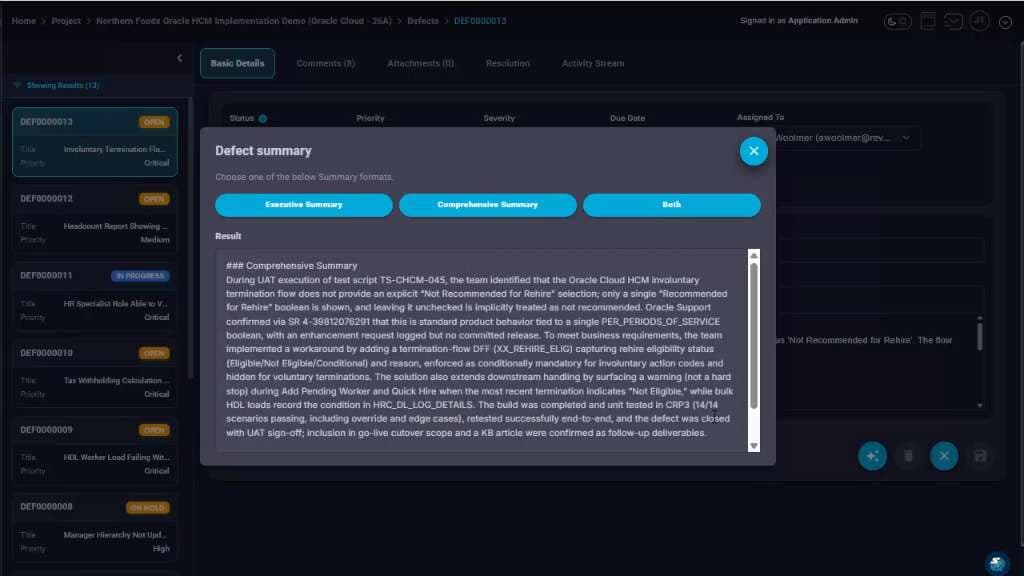
Review and copy the generated summary text
Once generation completes, scroll through the produced summary and use it for reporting, handoff, or documentation. If needed, regenerate using a different format (Executive vs Comprehensive) to match the audience. Takeaway: Paste the comprehensive output into the defect's Resolution/Root Cause area (if your process uses it) to preserve a finalized narrative for future reference.
What You Get
Defects are created from the exact failed test context, enriched by AI into a cleaner narrative, linked back to the test case, and summarized for handoff, reporting, triage, and future audit history.