Create, Edit, and Start Phases (and Update Requirement Statuses)
Project > Phase
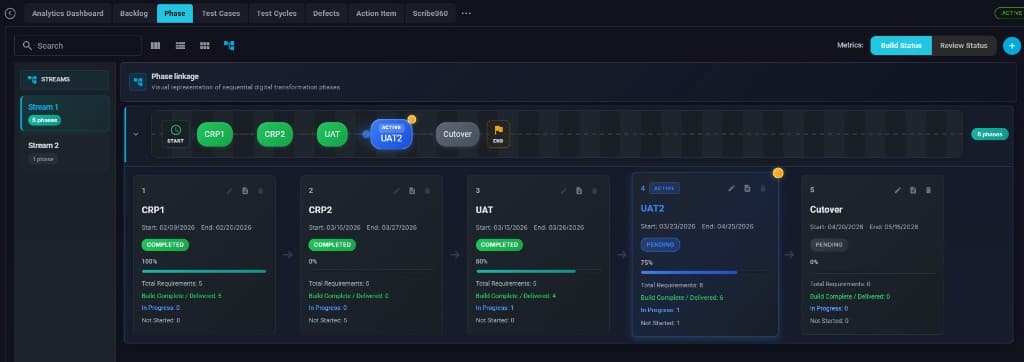
Open the Phase workspace for your project
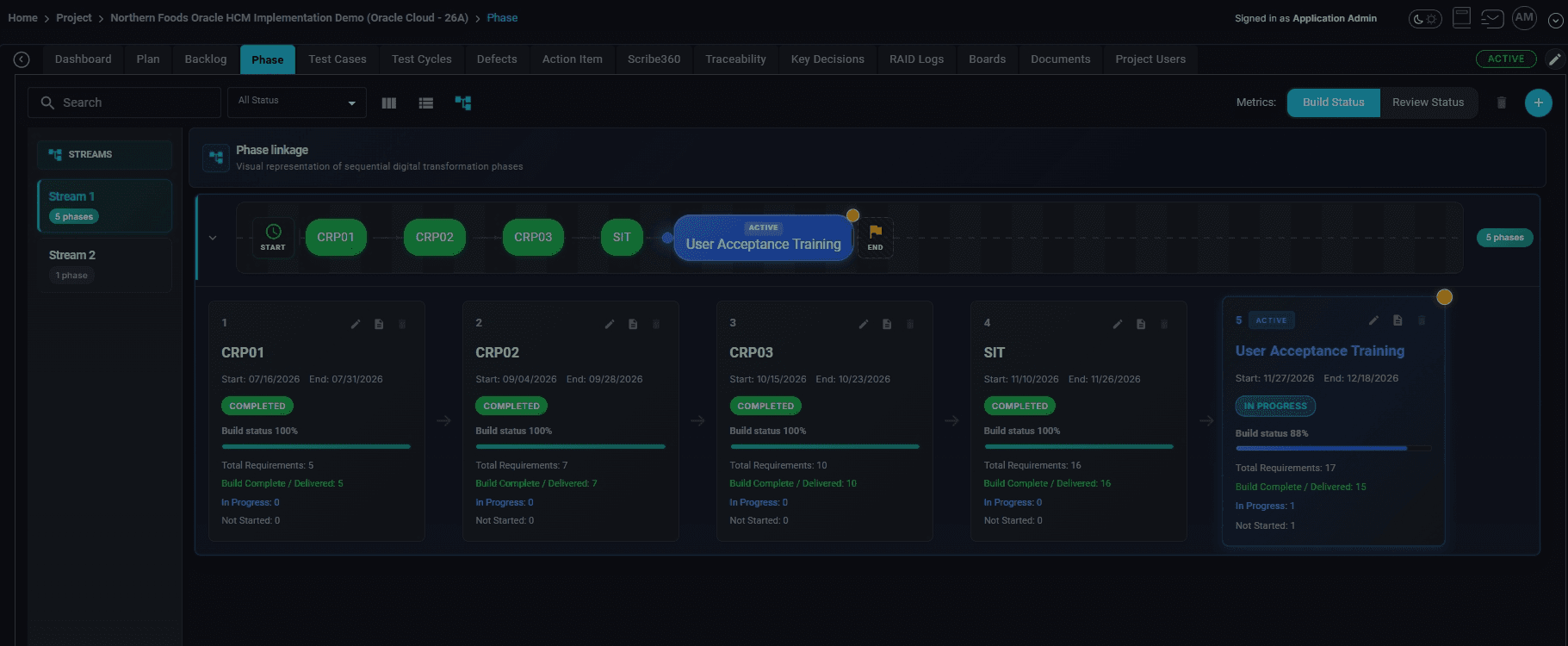
From your project navigation, select the "Phase" tab to view the phase timeline/board for the selected stream.
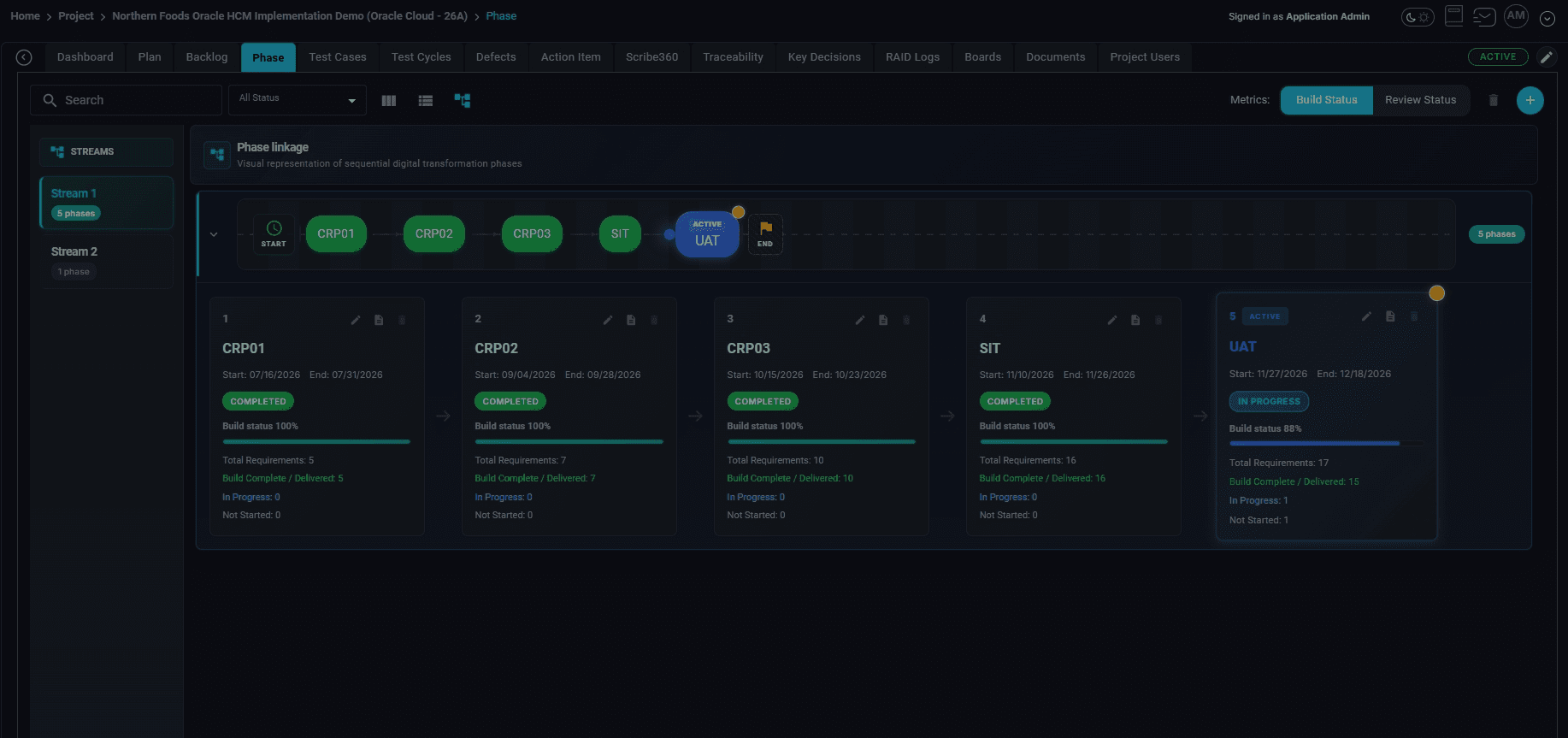
Start adding a new phase
Click the plus (+) button on the right side of the Phase view to add a new phase.
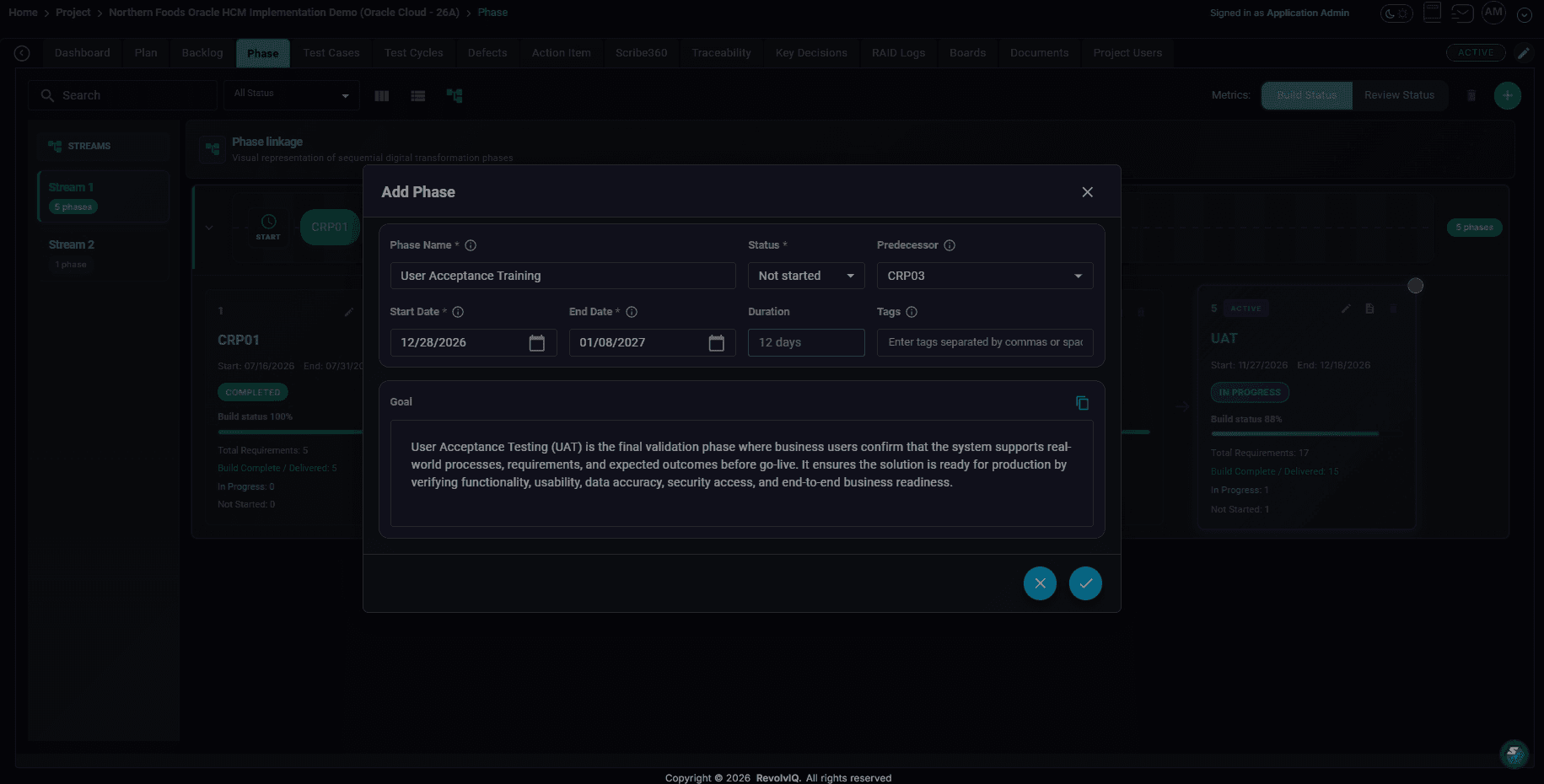
Fill in phase details and create the phase
In the "Add Phase" modal, enter the Phase Name, Status, Predecessor (if applicable), Start Date, End Date, and any Tags/Goal. Click the create/confirm button to save the new phase.
Verify the new phase appears on the phase board
Return to the Phase board to confirm the newly added phase appears in the sequence and on the phase card list.
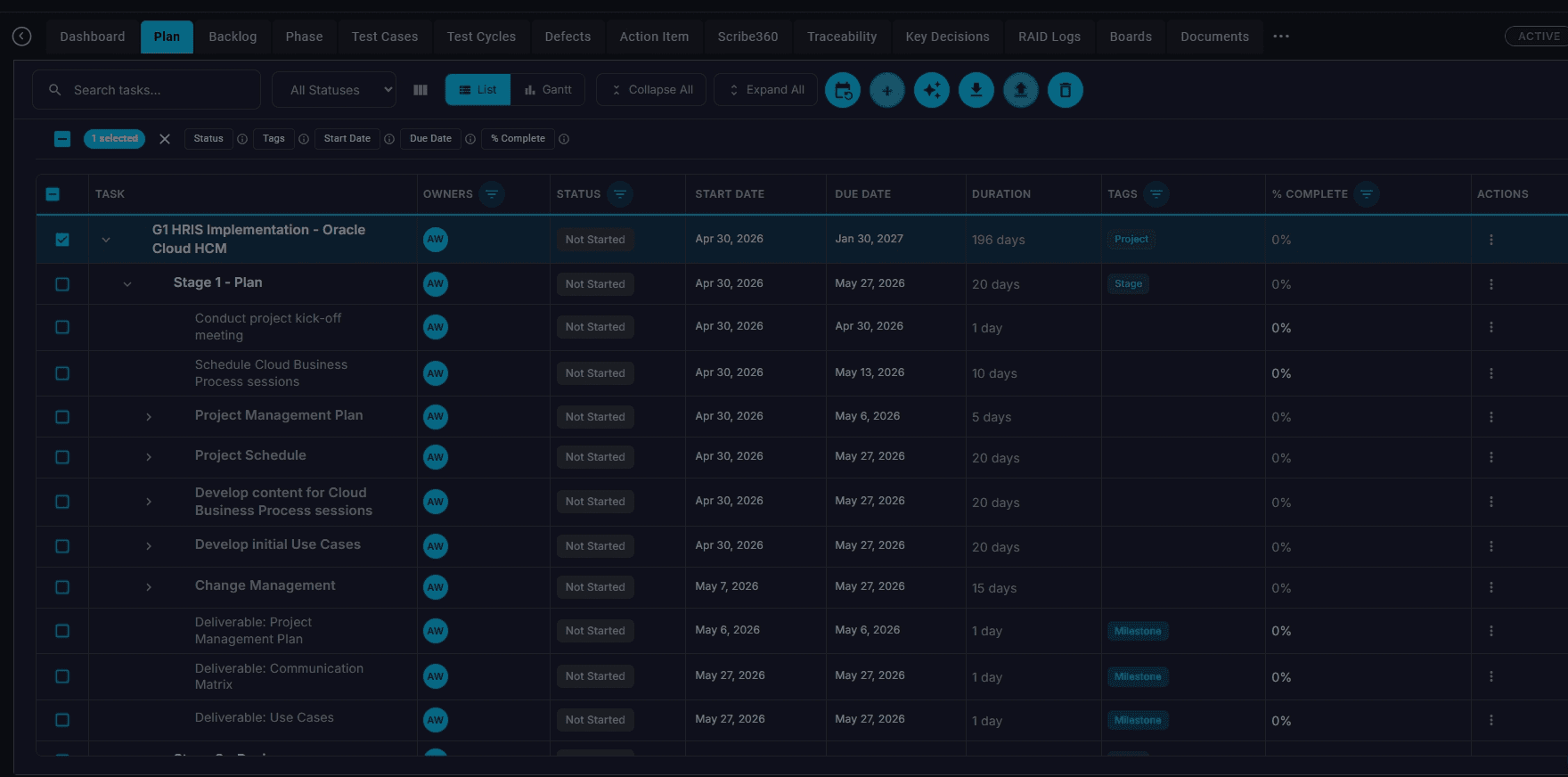
Select a plan item to generate phases from the plan
Open the Plan view, select the relevant plan item, and use the AI phase generation action to create implementation phases from the plan structure.
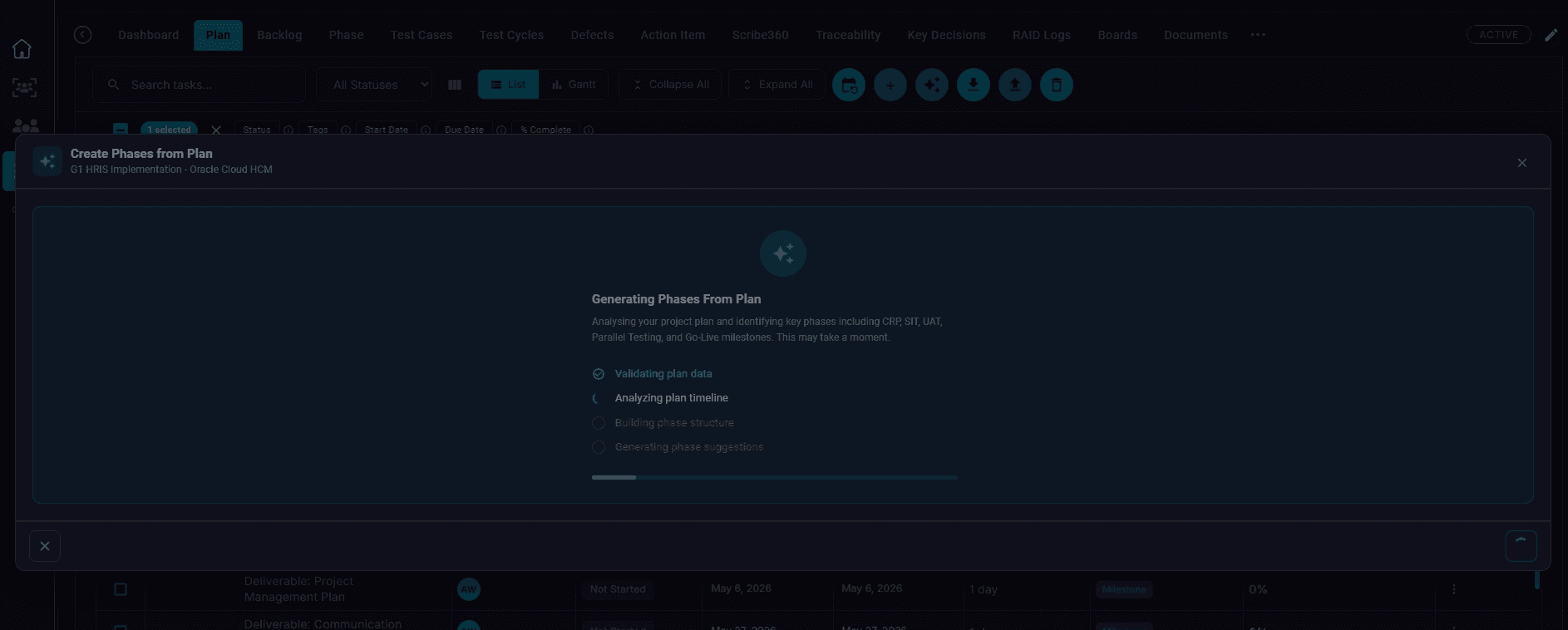
Wait while SaaSMap generates phase suggestions
Monitor the generation modal as SaaSMap validates plan data, analyzes the plan timeline, builds the phase structure, and prepares suggestions.
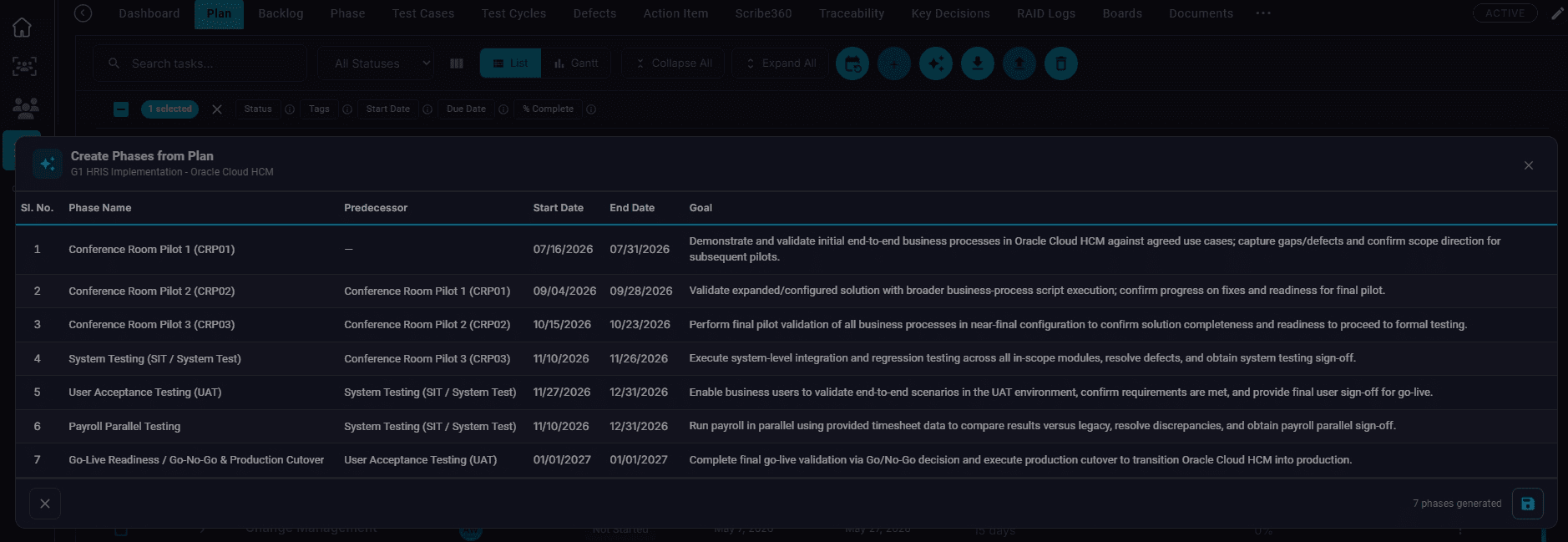
Review generated phase suggestions
Review the generated phase names, predecessors, start and end dates, and goals before saving the phase set.
Start a phase and copy requirements forward
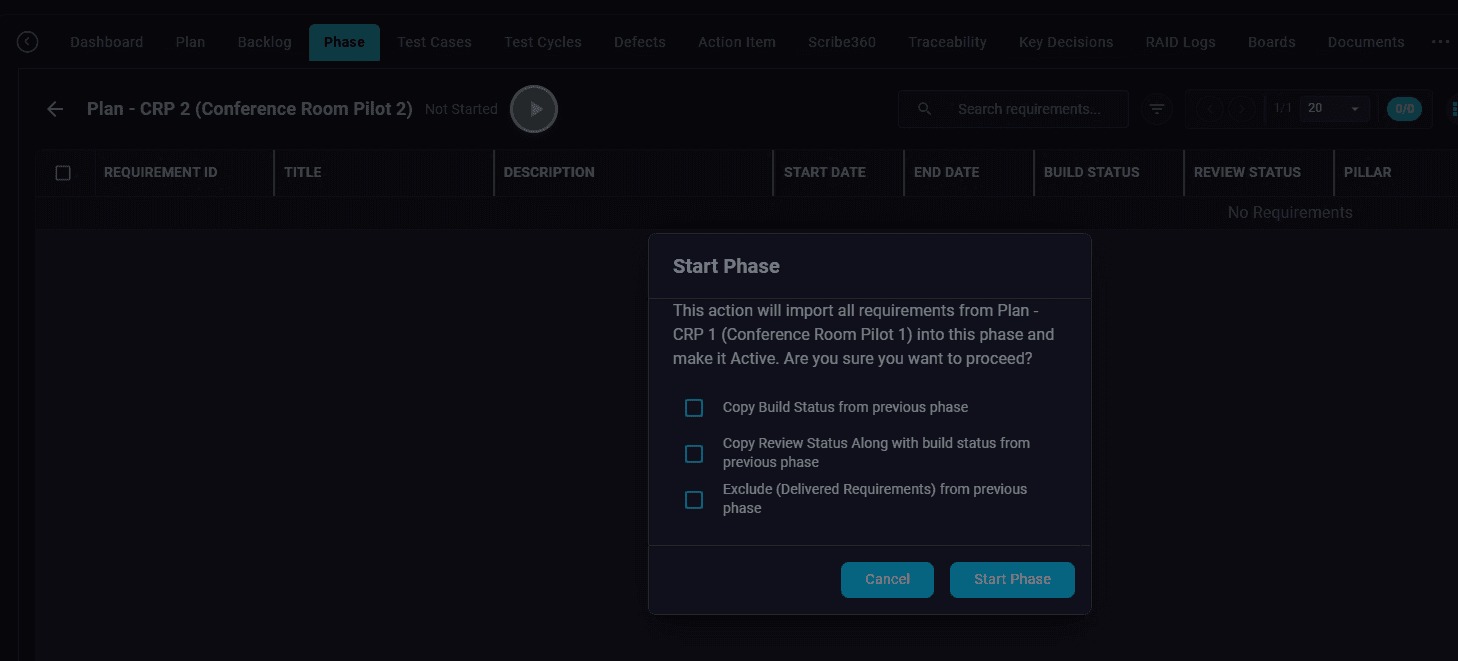
Open a phase and use Start Phase to import requirements from the predecessor phase, optionally copying build and review statuses.
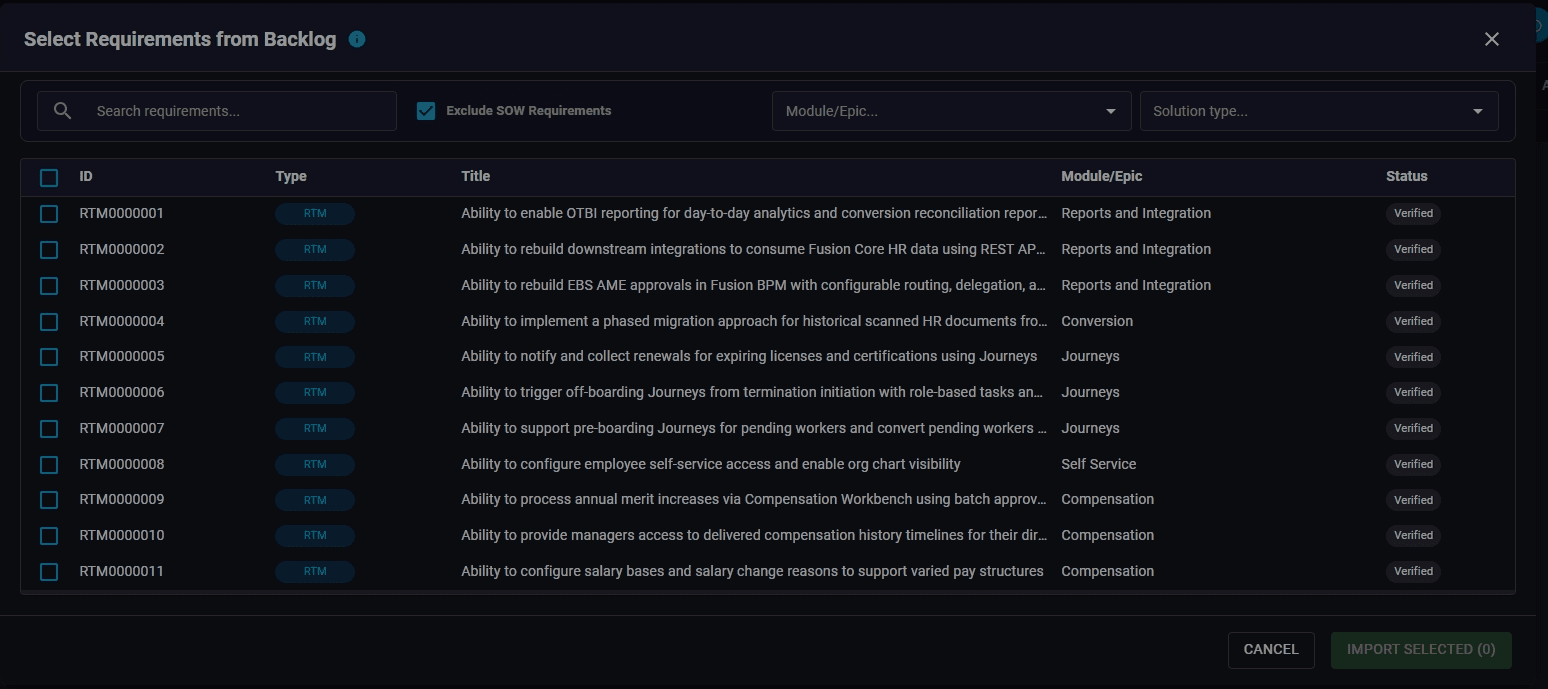
Import additional requirements from the backlog
From the phase requirements view toolbar, click the import control and choose "Import from Backlog" to bring in additional items.