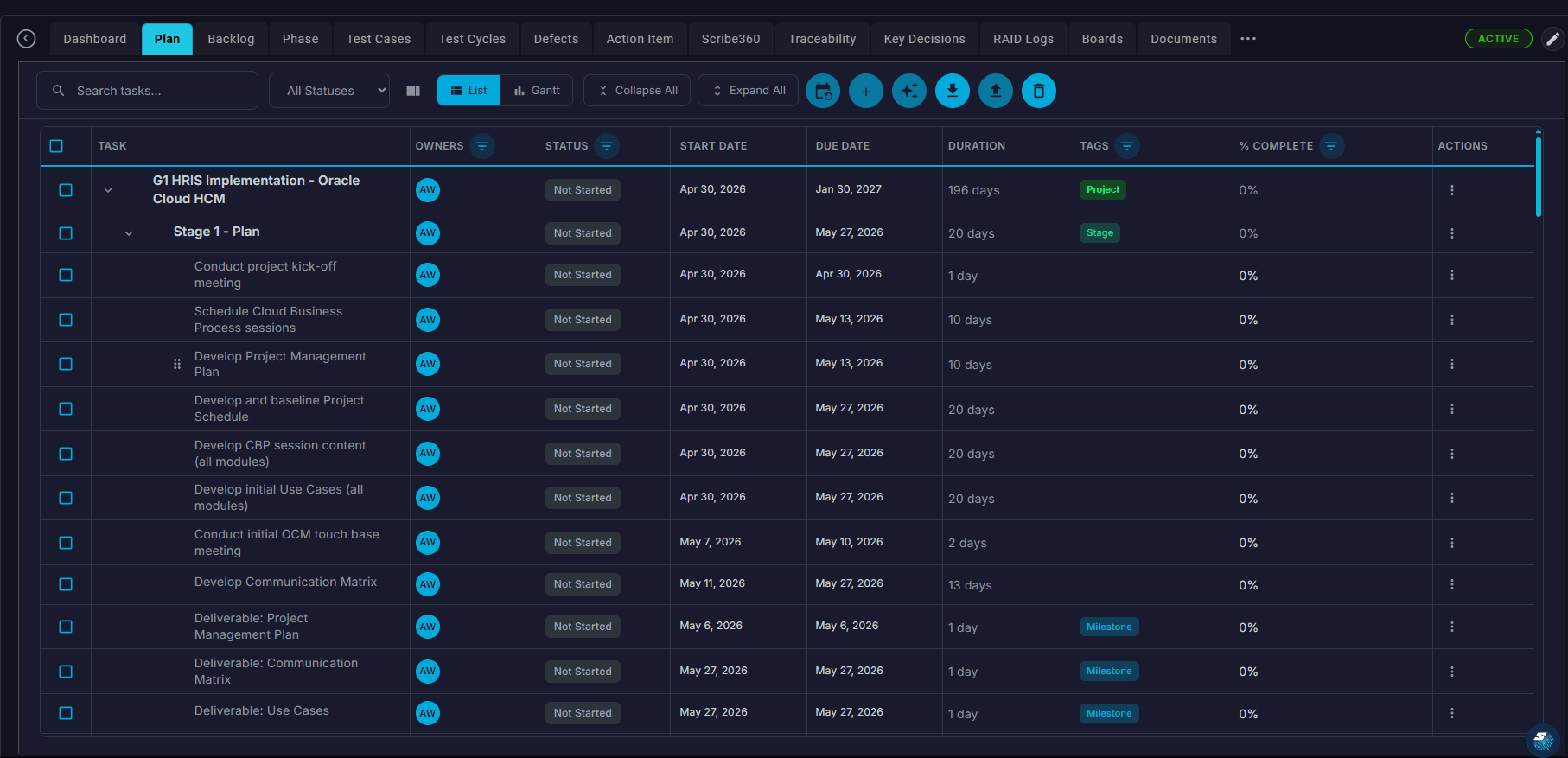
Open the Plan workspace for your project
From the project navigation, select the "Plan" tab to view your project plan in list or Gantt view.
Create your first plan from scratch
Use the "+ Add Task" control to create top-level tasks, then add subtasks beneath them to build out the work breakdown structure. Each task captures owner, dates, status, predecessors, and tags.
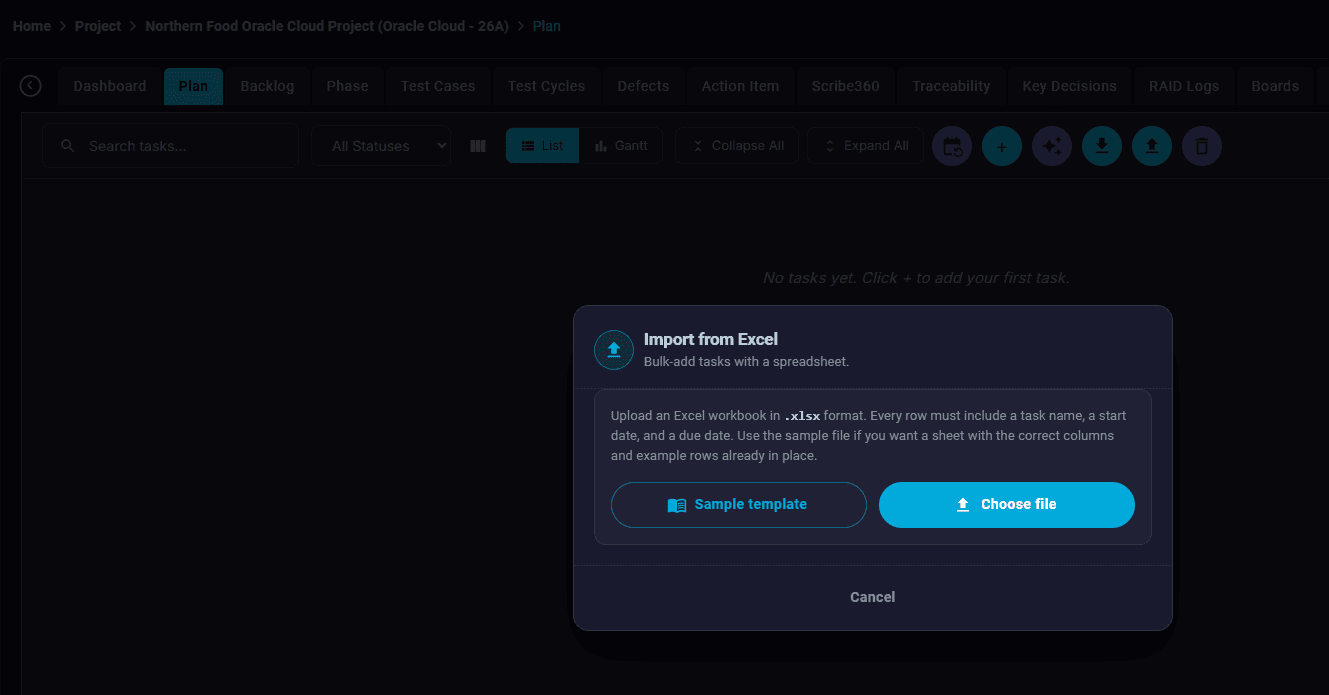
Or import an existing plan from Excel
Click "Import" on the Plan toolbar and upload any client's Excel project plan. SaaSMap auto-detects the column structure — task names, dates, owners, and hierarchy — so you don't have to map fields manually.
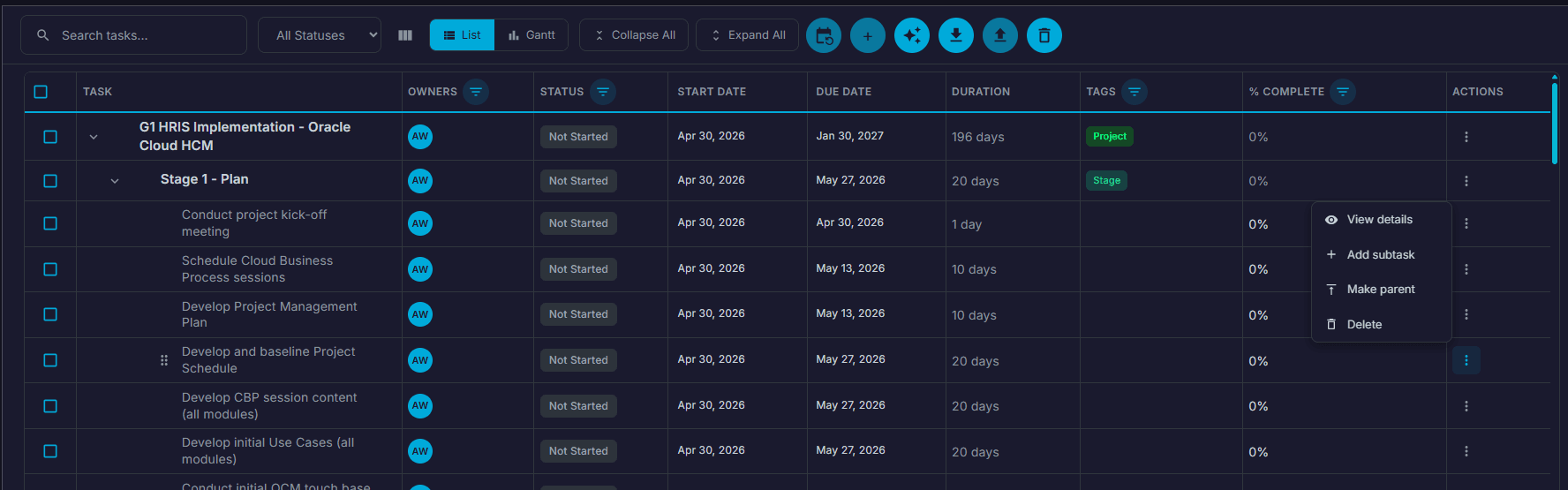
Build your multi-level hierarchy
Drag tasks to nest them under parents, indent/outdent to adjust levels, and create as many sub-levels as you need to reflect functional, technical, testing, conversion, reporting, and integration tracks.
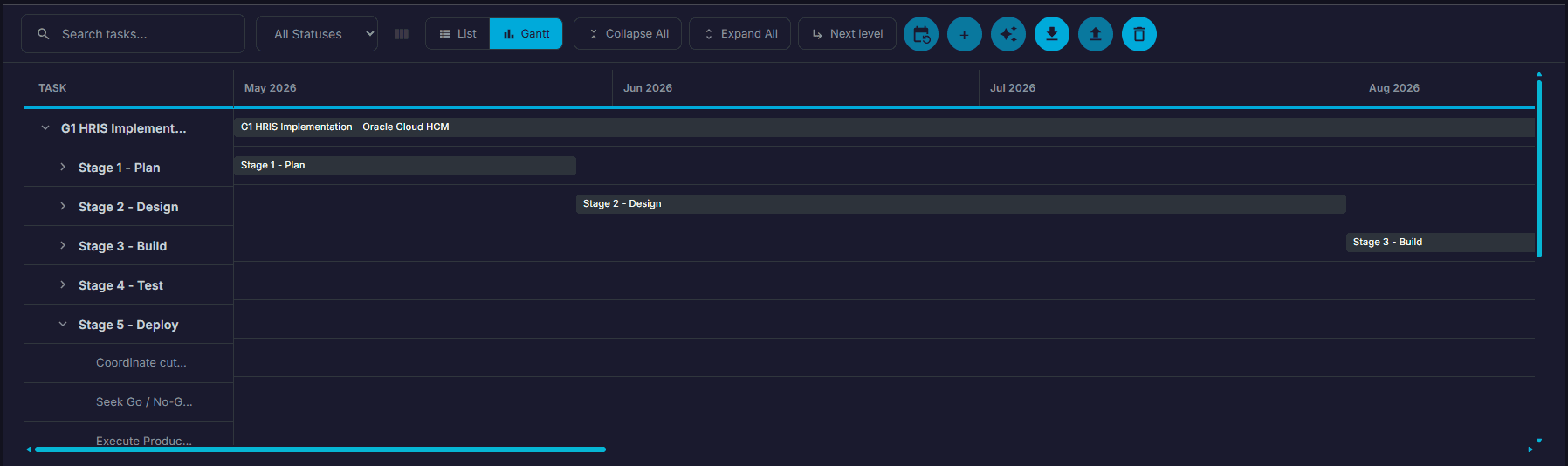
Switch between list view and Gantt view
Use the view toggle to move between a spreadsheet-style list view and a timeline-style Gantt view. PMs typically work in Gantt; workstream leads typically work in list.
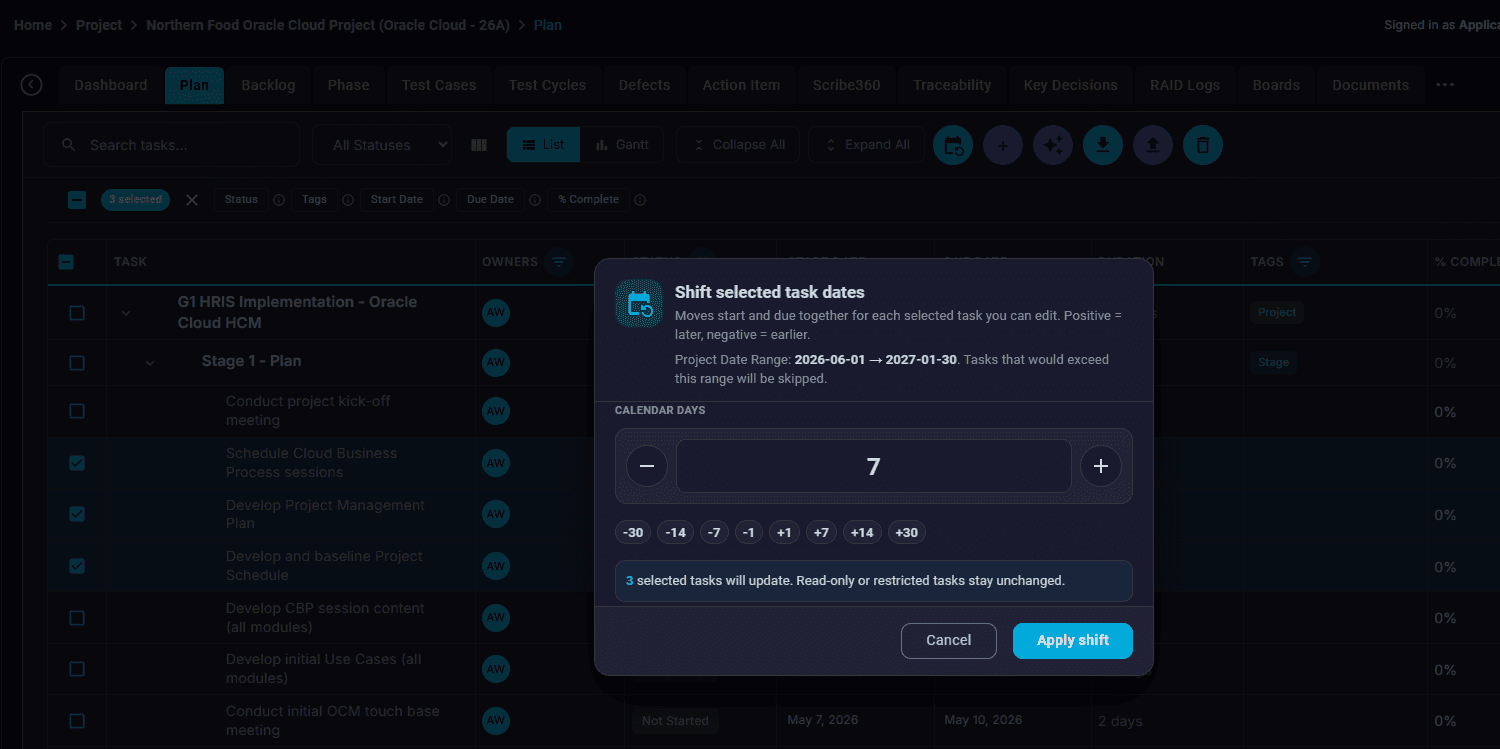
Shift dates in bulk when the timeline slides
Select the tasks you want to move, open the "Shift Dates" utility, and shift them forward or backward by days, weeks, months, or years. Hundreds of tasks update in one operation — no row-by-row date editing.
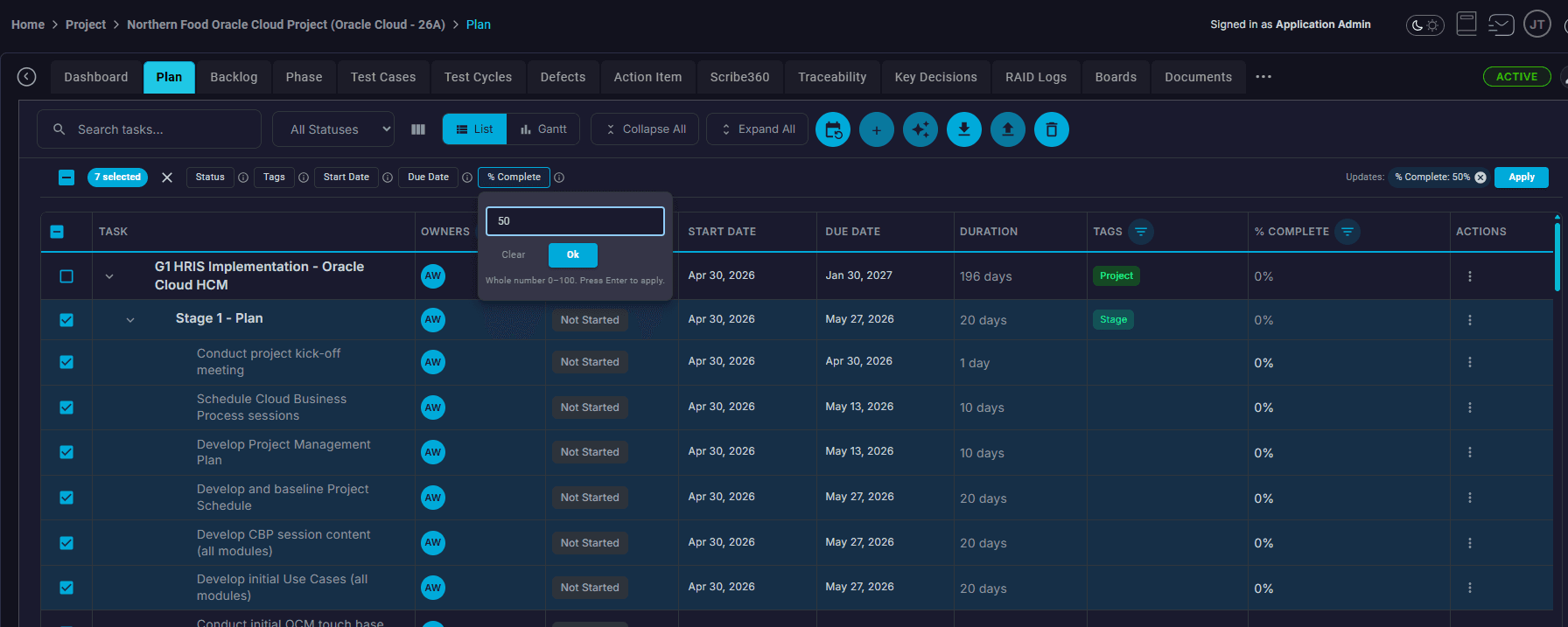
Mass-update owners, statuses, and assignments
Select multiple tasks and use the mass-update control to reassign owners (e.g., when a workstream lead changes), update statuses (e.g., "Not Started" → "In Progress"), or change ownership across an entire workstream at once.
Collaborate at the task level
Open any task to add comments, attachments, notes, and supporting documents. Assign individuals or groups, and use the task as the single source of truth — no more context buried in email threads.
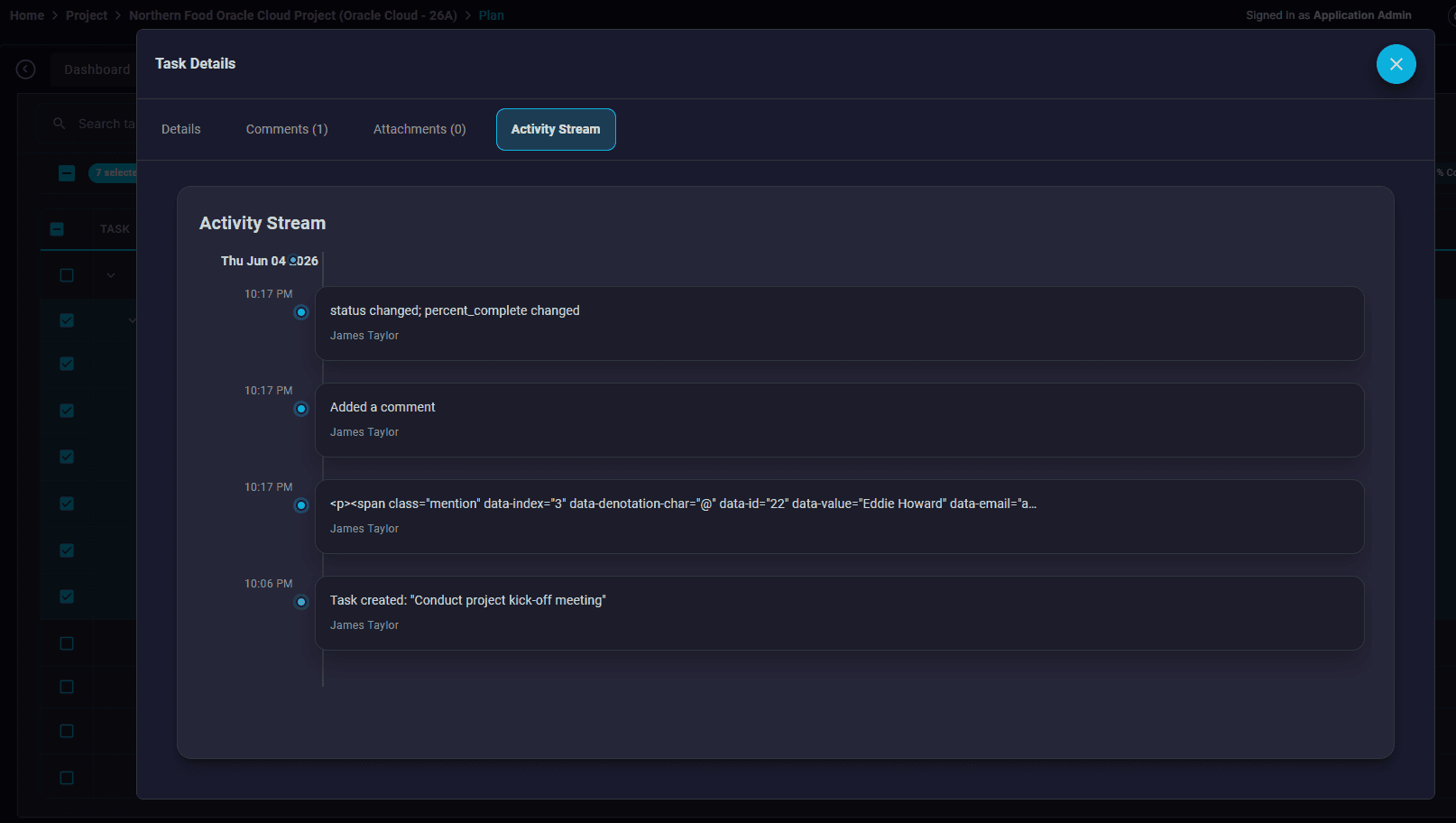
Review the full activity audit
Open the activity tab on any task to see every change captured automatically — date changes, status changes, reassignments, comments, attachments. The audit history protects the project when delivery timelines become contentious.