Generate Job Aid from Content in Scribe360
Use Scribe360 to turn pasted or drafted content into an AI-generated Job Aid. You'll open the Scribe360 workspace, create a new document, select the Job Aid output style, generate a preview, review the rendered Job Aid in the document viewer before saving or closing.

Open the Scribe360 workspace
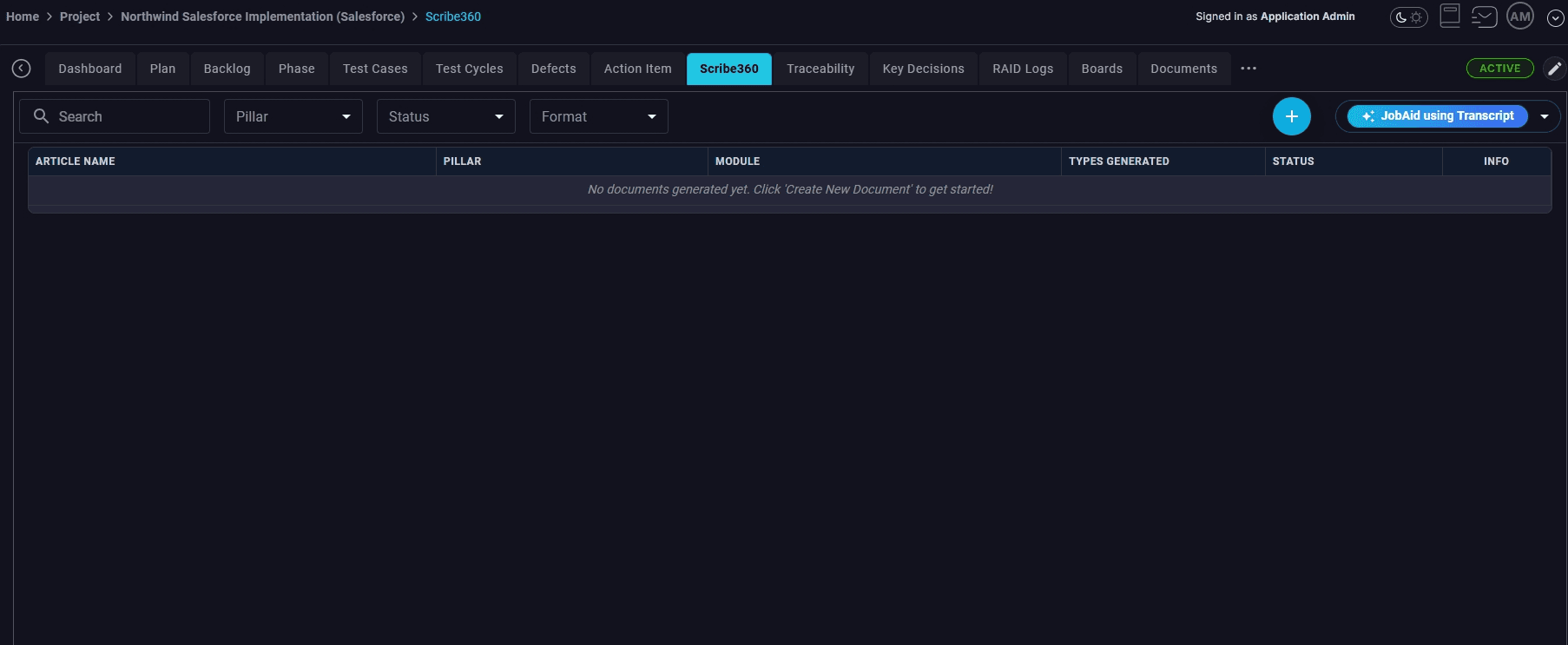
From your project navigation, click the Scribe360 tab to open the document list area.
Create a new document and enter your source content
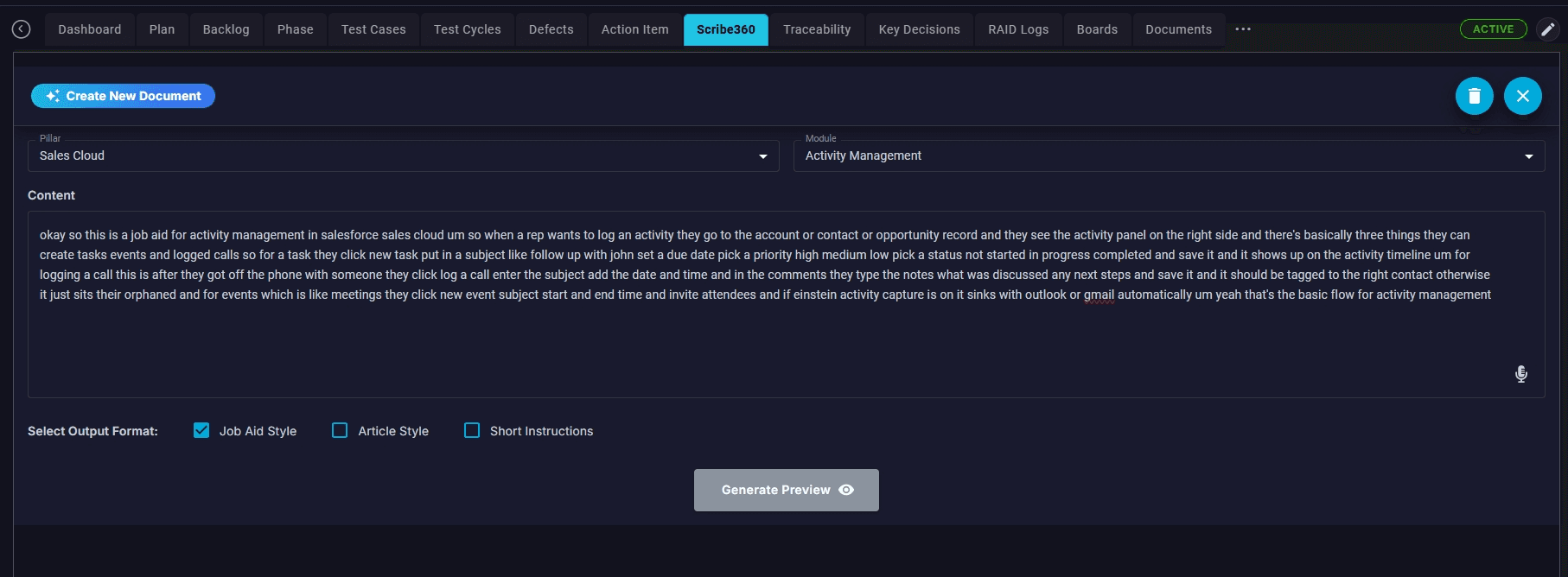
Click Create New Document, choose the appropriate Pillar and Module, then paste or type your content into the Content field.
Select the Job Aid output format
Under Select Output Format, check Job Aid Style (and leave other formats unchecked unless you want multiple outputs).
Wait for generation to complete
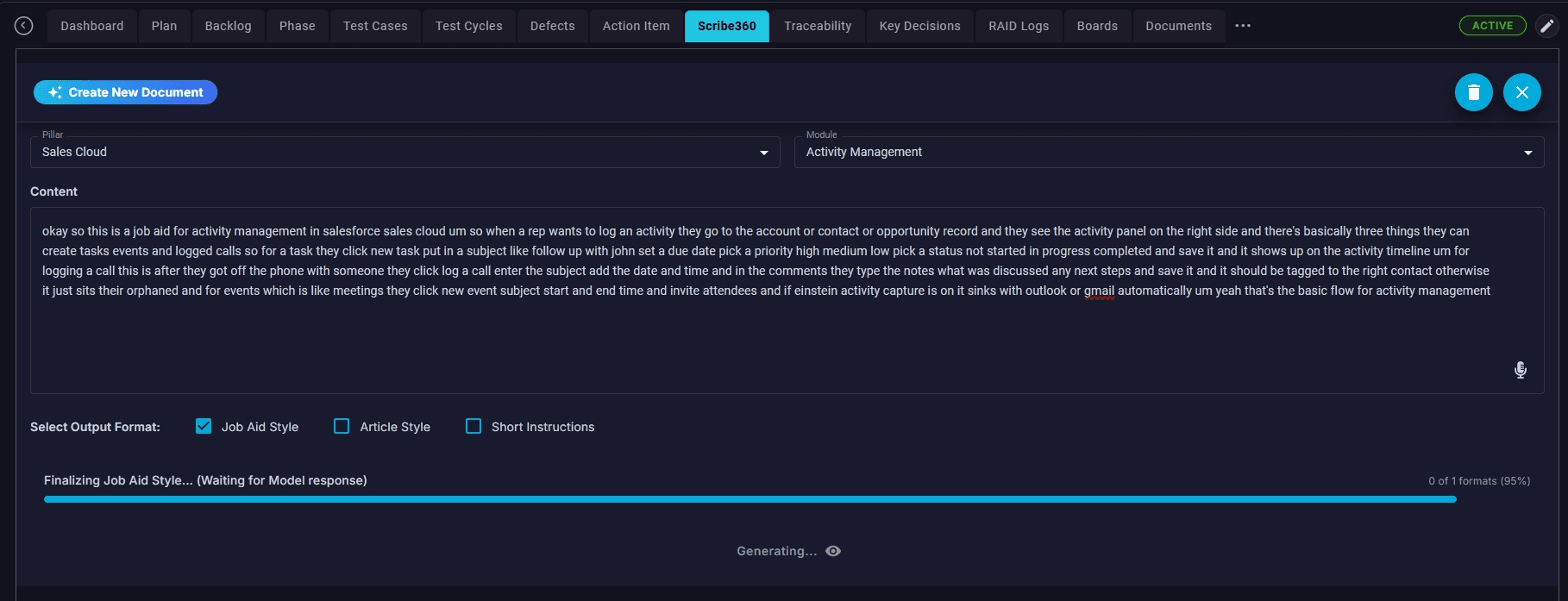
Monitor the progress indicator until the system finishes creating the Job Aid.
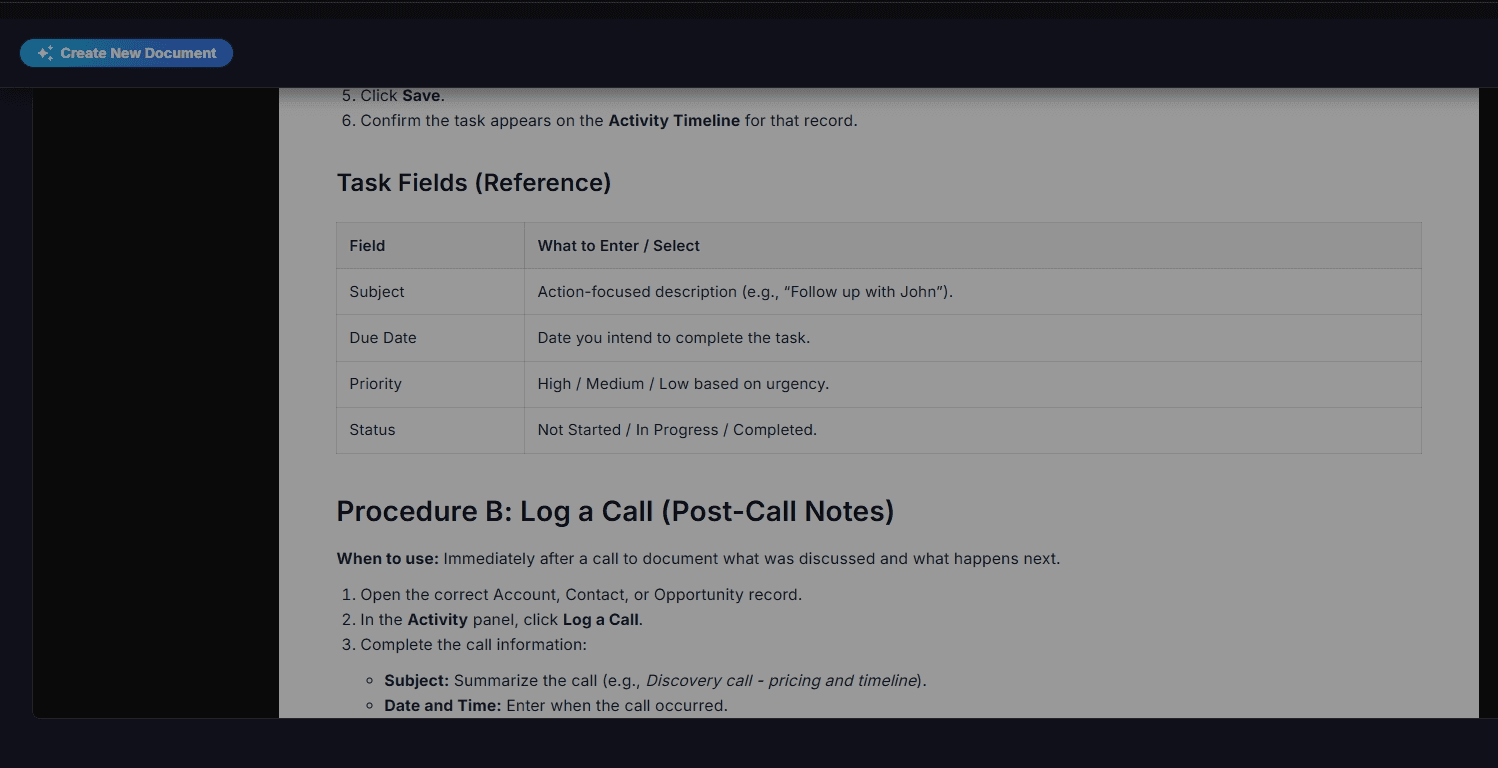
Review the rendered Job Aid in the preview viewer
When the preview loads, scroll through the document to verify Steps, Tables, and formatting match your expectations.
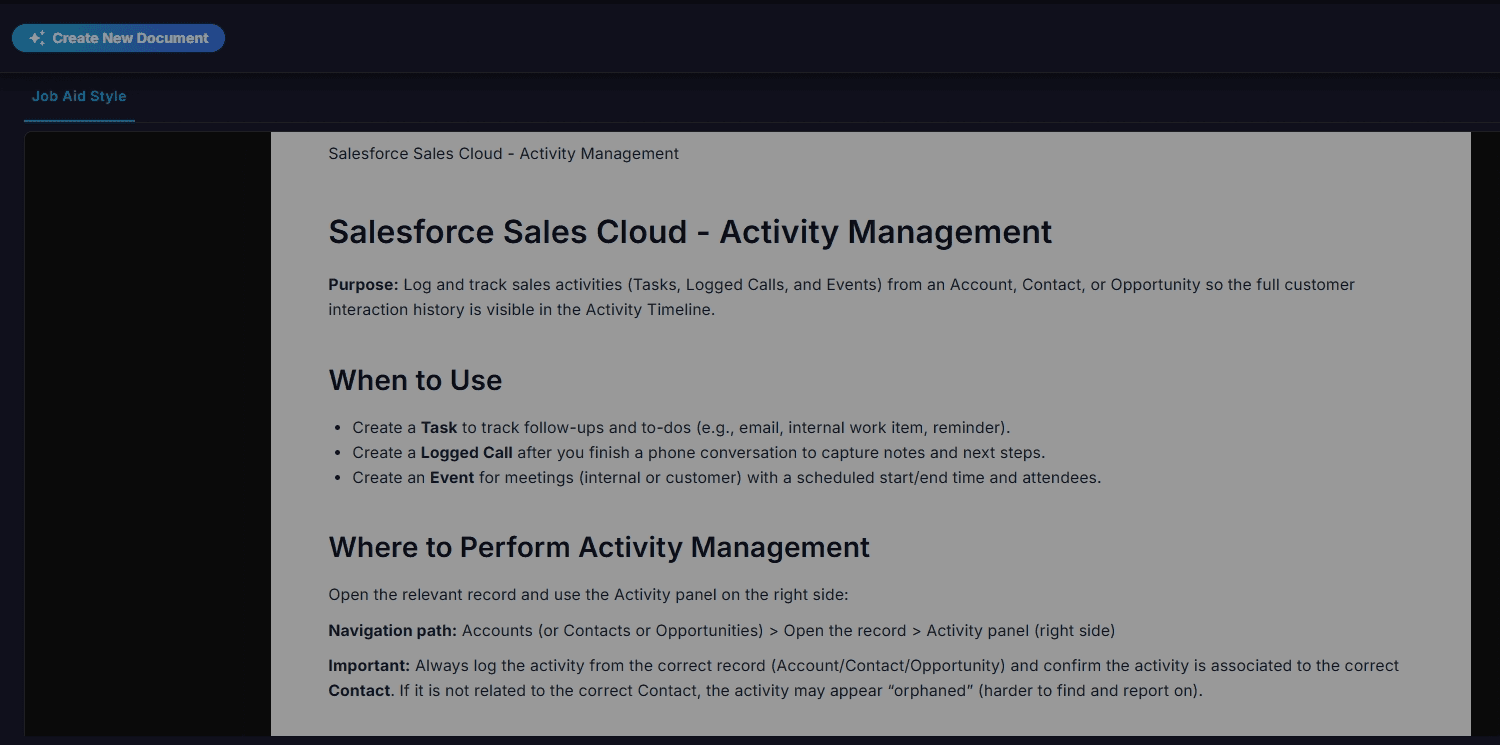
Spot-check additional sections by scrolling
Scroll further down to validate mid-document sections (for example, risk/issue tracking or other operational steps) are complete and correctly sequenced.