Admin Guide
SaaSMap
Introduction
Welcome to the SaaSMap Admin Guide. This guide is intended to help administrators manage the core user setup activities required to support access and usage within the application.
It primarily covers two key administrative functions: adding Clients & Client Users, and adding internal Users. The purpose of this guide is to provide clear instructions for performing these tasks efficiently and ensuring that the right users are set up with the appropriate access.
Setting up Client & Client users
Click on the ‘Clients’ icon in the Left Hand menu
This will display details of Clients configured in the Application.
You will see the following screen.
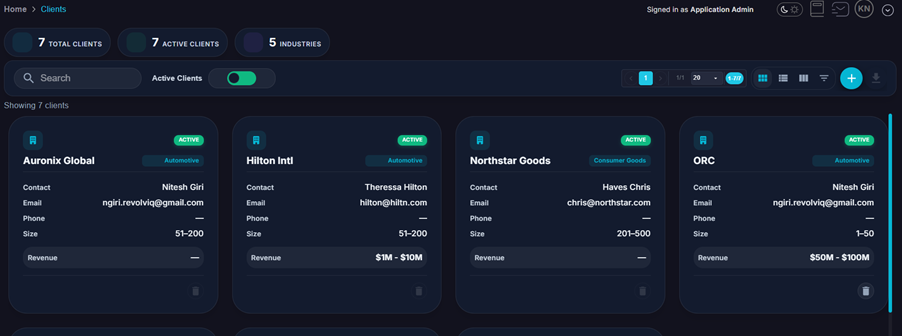
You will see a blank page initially since there has been no setup done.
Click on the icon to add a new Client in the Application.
The following page comes up. Use this to setup your Client details.
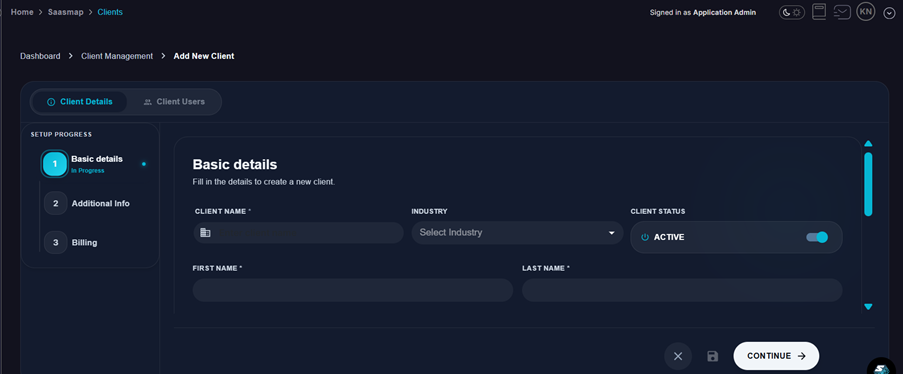
Fields marked with a ‘*’ are mandatory.
To successfully setup a Client you need to configure
- Basic Details
- Additional Info
- Billing
Click on the icon to save the entered details.
Once you have successfully setup a Client, then you can then configure the Client Users. Click on the ‘Client Users’ (area highlighted below) to setup Client users.
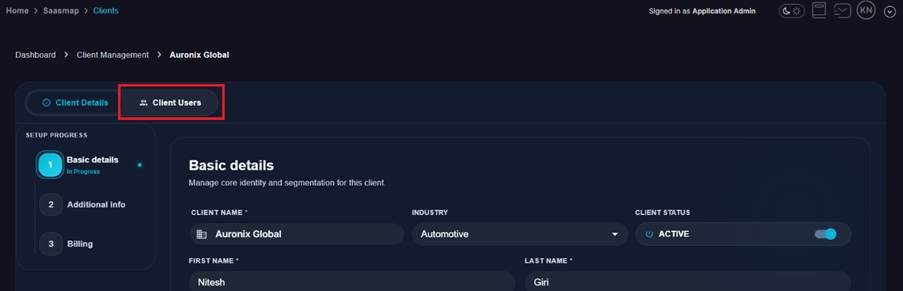
To start with there are no Client Users. Click on the ‘+’ icon to add a new Client User
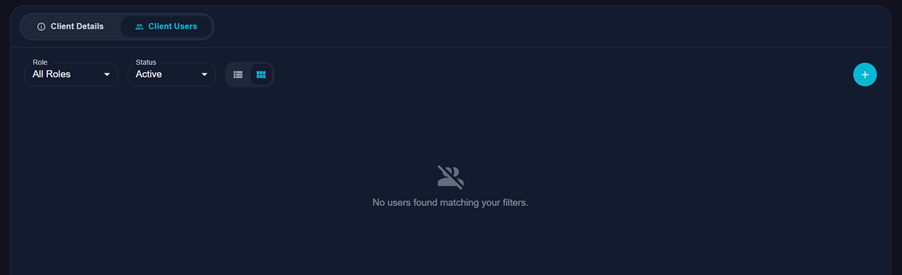
Enter the Client User details in the following screen
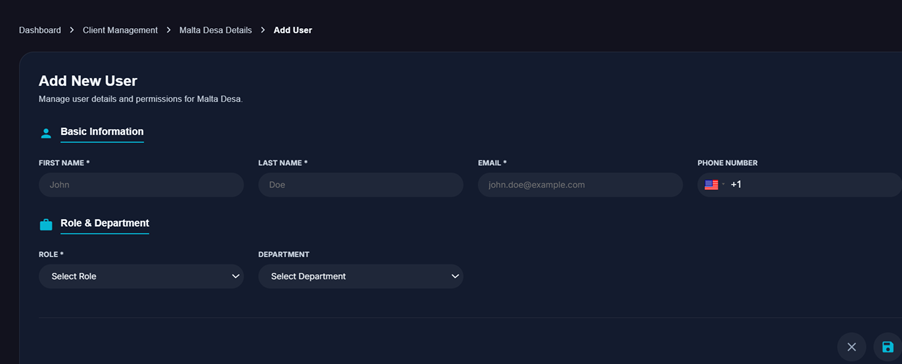
In this screen, after entering the First Name, Last Name & Email address, it is mandatory to select the ‘Role’ of the Client User.
The application supports the following Client roles
- Client Reviewer
- Client Tester
- Client User
Client Reviewer
Client Reviewer is your Client organization’s formal review and sign-off role. People in this role are expected to validate work before it moves forward: they can review backlog items and, where your process uses it, approve or reject them, take part in review assignment on phase work, and use the same read access as other client stakeholders to requirements, test cases, and related views so decisions are informed. Assign this role to Client contacts who are accountable for acceptance, compliance, or business approval.
Client Tester
Client Tester is for people your team invites to run tests (for example as part of a client UAT cycle or event). In the product, this role is oriented toward test execution and outcomes—resuming work on assigned test lists, saving execution progress, and working with defects—rather than owning full project navigation such as backlog or phase planning screens that broader client roles use. Use it when you need client-side participants who will execute steps and record results, without giving them the same planning or approval responsibilities as a Client Reviewer or the same general project visibility as a Client User.
Client User
Client User is the default stakeholder role for your client organization. These users can view project details and related views to stay aligned on scope, requirements, tests, and progress, while internal roles continue to own creating and editing those records. They are not the primary role for formal backlog approval (that sits with Client Reviewer) nor for hands-on test execution assignments (that sits with Client Tester). Grant Client User to sponsors, SMEs, or PMs who need ongoing visibility and light collaboration without treating them as approvers or dedicated executors.
Managing Users
Users is where application administrators manage accounts for your tenant—listing users, adding people, and updating roles and access.
Click on the Users menu option to Manage Tenant users.
You will see details as below
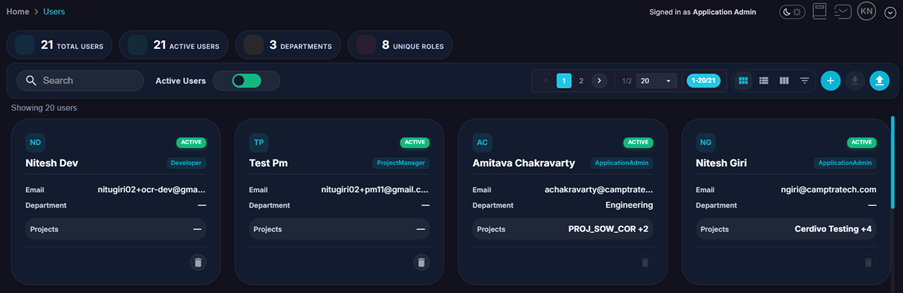
To start with, the details might be empty when you are starting afresh.
Click on the ‘+’ icon to add a new user. The following screen comes up
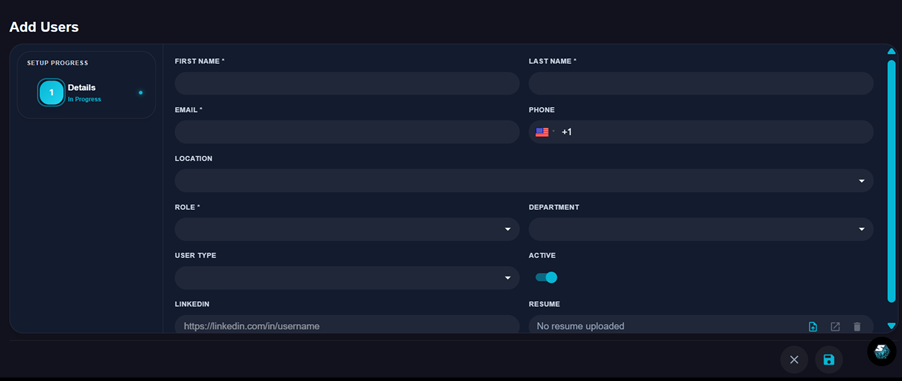
Setup all the key fields and click on the Save button to create a User.
The Role drop down has the following key system Role values
- Application Admin
- Developer
- Project Manager
- Tester
Application Admin
Application Admin is a full tenant administrator, treated the same as Test Admin in the product: these users can reach all major administration and configuration areas, including Manage Users (tenant-wide accounts), and they sit above day-to-day project authoring and testing work. Assign this role sparingly to people who must govern security, users, and global settings.
Developer
Assign the Developer role to someone who needs to view requirements in the backlog, This role can view all the Backlog requirements but only make updates to assigned Backlog items. This role also works on assigned requirements in a Phase to build and Test. A Developer can also import requirements into a Phase, make updates to own requirements. This role can also Generate Test Cases and be assigned Test cases for execution in a Test Cycle.
Project Manager
Project Manager is a senior delivery role and has many key privileges and permissions in the product: these users can work in Manage Client, Manage Project, Project Workspaces, Test Cass , Test Cycles and Settings alongside admins for operational governance, while still participating in project execution as needed. This role also has access to importing/setting up Test Cases in the Test Case Library. This role also has access to the Backlog and Phase features thus allowing for creating and managing requirements.
Tester
Tester is the role oriented toward running tests and recording outcomes: the application grants them test case execution capabilities while intentionally keeping them out of some broader project details navigation paths used by authors and managers, so execution stays focused and separation of duties is easier to maintain. Assign Tester to people whose main job is to validate software.