AI Fit-Gap Analysis Guide
User Guide
SaaSMap
Introduction
AI Fit-Gap Analysis helps you assess project requirements against the Out-of-the-Box (OOTB) capabilities of your software platform. For each selected requirement, SaaSMap uses AI to suggest whether the need is a Fit, Partial Fit, or Gap, along with supporting analysis and, where applicable, a recommended gap resolution approach.
The feature is designed for consultants and project teams who need to populate Fit-Gap details efficiently across many backlog requirements. AI suggestions are always presented for your review. Nothing is written to the backlog until you accept a result.
This guide explains how to run AI Fit-Gap Analysis from the project Backlog, review the generated assessments, and apply accepted results to your requirements.
Accessing AI Fit-Gap Analysis
To use AI Fit-Gap Analysis, open the project and go to the Backlog tab.
In the Backlog toolbar, click the AI Generated Fit-Gap Analysis button (magic wand icon).

This opens the AI Fit-Gap Analysis panel like below.
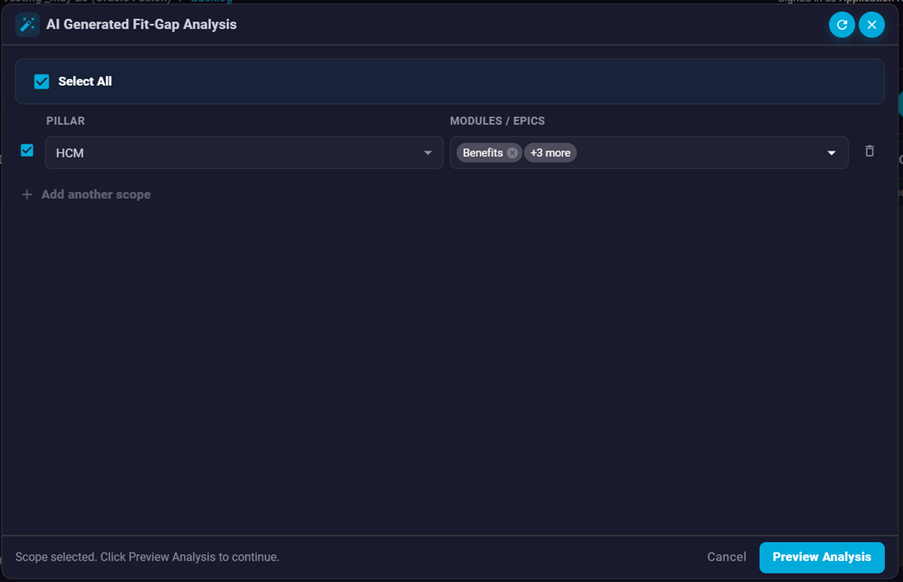
If you had run an analysis in the past for the same project, the last run report details will be displayed.
Note that user can always manually update the Fit Status field.
Before you can run an analysis:
- Your user role must have permission to use AI Fit-Gap analysis.
- AI-powered features must be enabled for your tenant.
- The project must not be in Draft status.
If a Fit-Gap analysis is already running in the background for the project, the toolbar indicates that status. You can reopen the panel to check progress or view the report after the run completes.
Here is how a generated report looks like.
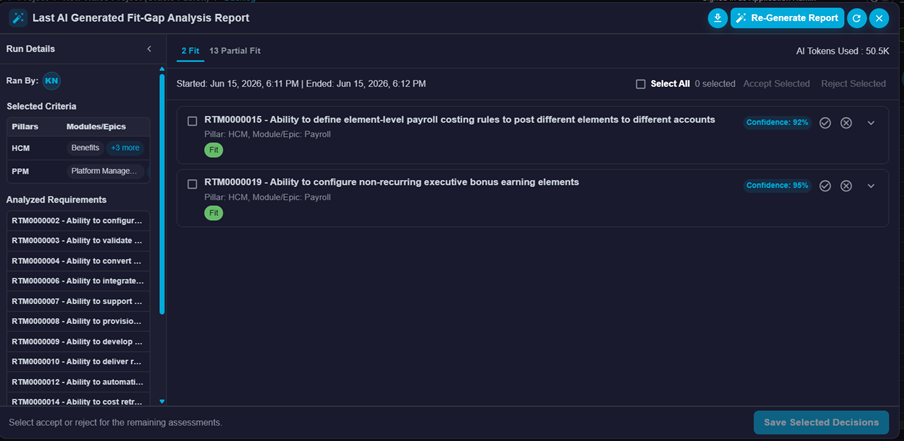
The Run Details has the details of the Pillars, Epics and the Requirements that the analysis was run for. The results part has multiple tabs – One for Fit , Partial Fit and Gap each. Clicking on the tab loads the respective details. ( In the above screen you can see the “Fit” details – as classified by the AI model)
Which Requirements Are Eligible
AI Fit-Gap Analysis works on backlog requirements that do not yet have a Fit/Gap value assigned. Requirements that already have Fit/Gap populated are excluded from analysis.
Requirements must also have Pillar (Software) and Module/Epic assigned. Rows missing either value are excluded and shown in the preview step with an explanation.
Selecting Scope
When the panel opens, the first step is to choose the scope of requirements to analyze.
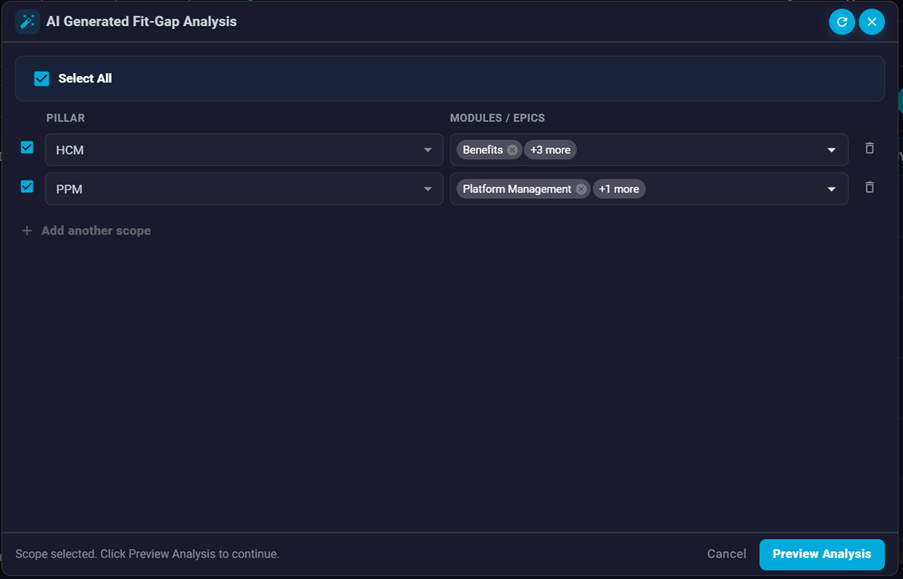
You can define scope in either of these ways:
- Select all – include every Pillar and Module/Epic combination available in the project backlog.
- Add scope manually – choose one or more Pillar and Module/Epic combinations using the scope rows.
For each scope row, select a Pillar and one or more Modules/Epics. Use Add scope to include additional pillar combinations. Remove a row with the delete icon if it is no longer needed.
When your scope is ready, click on Preview Analysis to see which requirements will be analyzed.
Preview and Start Analysis
The preview screen lists eligible requirements with a blank Fit/Gap status within your selected scope.
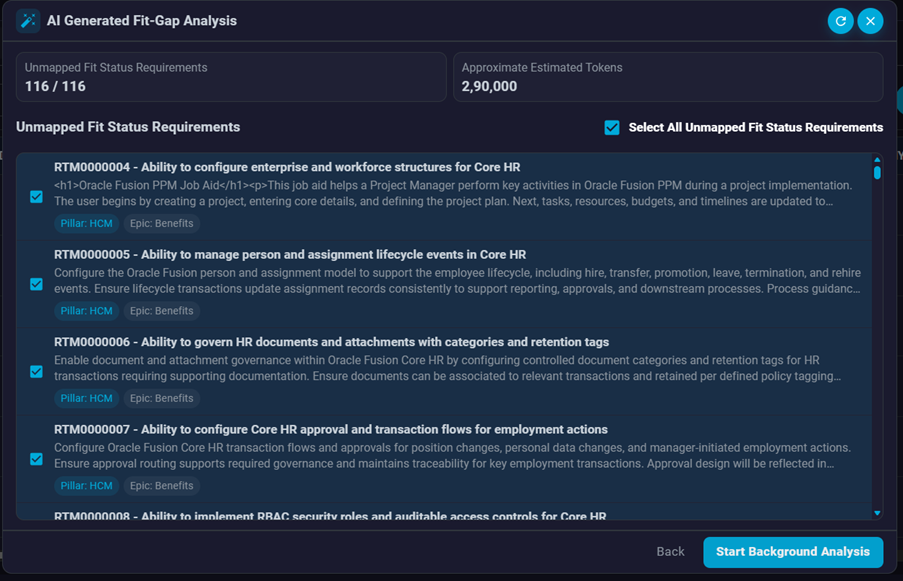
Review the summary counts at the top, including the number of selected requirements and the approximate estimated AI tokens for the run.
Use the checkboxes to include or exclude individual requirements. Select All Unmapped Fit Status Requirements selects every eligible row in the preview list.
When you are ready, click Start Background Analysis. SaaSMap submits the selected requirements for AI assessment.
Analysis runs in the background. You may close the panel and continue other work. Reopen AI Fit-Gap Analysis later to view progress or results.
Once the background job completes, you will be notified by an email.
Reviewing the Analysis Report
When the run completes, the panel shows the Last AI Generated Fit-Gap Analysis Report.
Results are grouped into tabs by proposed Fit status:
- Fit – the requirement is supported by standard product capabilities.
- Partial Fit – the requirement is partly supported; a gap remains.
- Gap – the requirement is not supported out of the box, or lacks enough detail for a confident fit assessment.
Use the run details sidebar to see who ran the analysis, the scope selected, and the list of analyzed requirements. You can collapse or expand this sidebar as needed.
Each result row shows the Requirement ID, title, pillar, module/epic, proposed Fit status, and confidence score. Expand a row to review the full AI assessment,
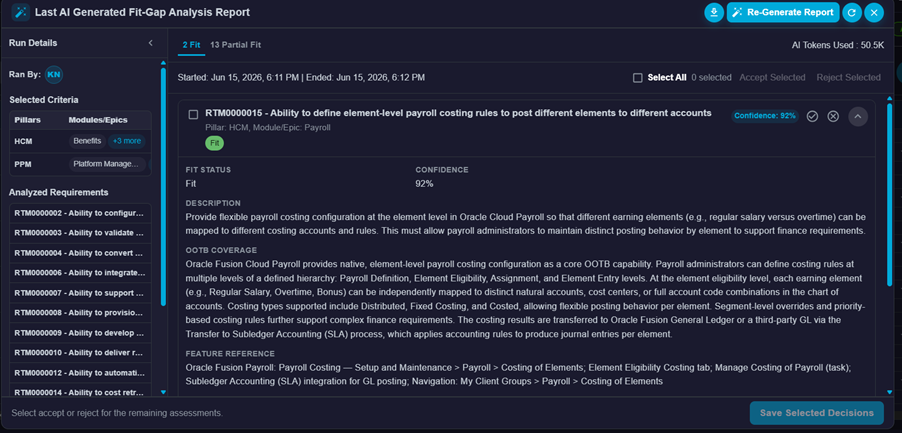
It includes:
- Fit Status
- Confidence Percentage
- Confidence Reasoning – why the AI assigned its confidence score.
- OOTB Coverage – what the software supports for this requirement.
- Feature Reference – the product feature, screen, or configuration area referenced by the assessment.
- Gap Summary (for Partial Fit and Gap) – what is not covered, when a gap exists.
- Resolution Approach – recommended way to address a Partial Fit or Gap.
- Risk Details – Details of risk if the gap is not delivered
- Complexity, Estimated Effort (days), Unresolved Risk, Risk Description, and Dependencies – supporting resolution details for non-Fit items.
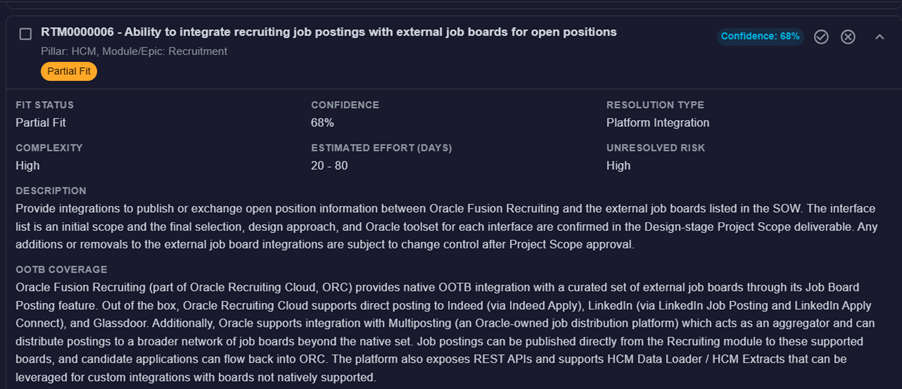
If confidence is below 50%, the result is flagged as Low confidence – verify manually. Review these items carefully before accepting.
You can download the full report to Excel using the download icon in the panel header. Use Re-Generate Report to start a new analysis run when you need a fresh assessment.
Accepting or Rejecting Results
For each result, use Accept or Reject to record your decision. You can also select multiple rows and use Accept Selected or Reject Selected.

Accepted results are saved and applied to the corresponding backlog requirement Fit-Gap details. Rejected results are not applied.
When you have marked your decisions, click Save Selected Decisions. SaaSMap persists your choices and updates accepted requirements in the backlog.
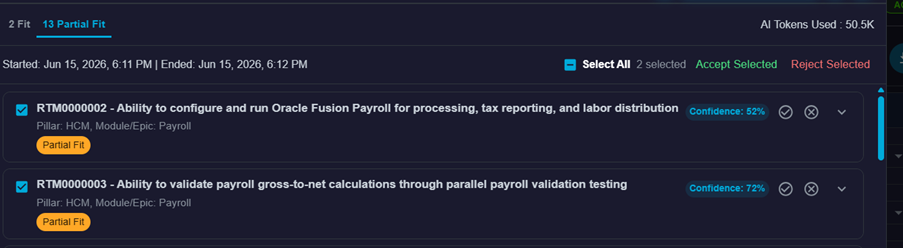
After all pending decisions are saved, the panel returns to scope selection so you can run another analysis if needed. Refresh the Backlog to see updated Fit/Gap values on accepted requirements.
Important: AI Fit-Gap Analysis provides recommendations only. Always review OOTB coverage, gap summaries, resolution approaches, and confidence scores before accepting results for use in your project deliverables.