Test Cycles
User Guide
SaaSMap
1. Introduction
Test Cycles in SaaSMap are scheduled testing events that bring test cases, teams, and testers together for structured execution. A Test Cycle defines what needs to be tested, who will test it, and when — giving test managers full visibility into execution progress and testers a clear, focused queue of work.
This guide explains how to create and manage Test Cycles, Assign teams and testers, run test cases, and track results through to completion. It is written for Test Managers, Project Managers, and Testers.
What you can do with Test Cycles
- View all Test Cycles for a project in a searchable, filterable list.
- Create a Test Cycle using a guided four-step wizard.
- Organise Test cases into Sections within a cycle.
- Assign Teams and individual Testers to specific Sections.
- Track execution progress — passed, failed, pending — in real time.
- Log Defects directly from a Failed test case.
- Download the test cycle instructions file for offline reference.
2. Accessing Test Cycles
Test Cycles are managed at project level.
- Sign in to SaaSMap and open Home.
- Select the project you are working on.
- In the project workspace, click the Test Cycles tab.
Note: Everything on this tab applies only to the project you have open. If you do not have permission to view Test Cycles, the tab may not be visible.
3. The Test Cycles Screen
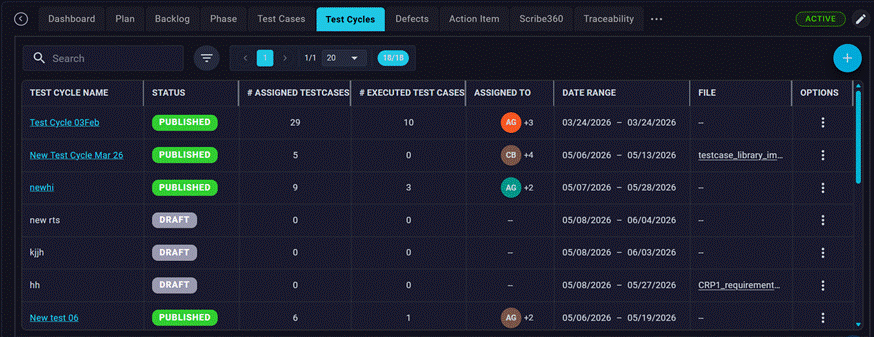
The Test Cycles screen shows all cycles for the current project in a table. Each row summarises one cycle.
Columns you will see
| Column | What it means |
| Test Cycle Name | The name given to the cycle when it was created. |
| Status | Current lifecycle status: Open, In Progress, Completed, or Closed. |
| Date Range | The planned execution window for the cycle. |
| Assigned Test Cases | Number of test cases added to this cycle. |
| Executed Test Cases | Number of test cases that have been run. |
| Assigned To | Testers or teams assigned to this cycle. |
| File | Testing Instructions file |
Row actions menu
Open the options menu (⋮) on any row for common actions:
- Edit — open the wizard to update cycle details, teams, or sections.
- Delete — permanently remove the cycle (subject to role permissions).
Search and Filters
- Global Search — type keywords to filter rows by cycle name.
- Status Filter — narrow the list to a specific lifecycle status.
- Advanced Filters — build rules on fields such as Test Cycle Name, Status, Created By, Start Date, End Date, and Assigned To. Combine rules with AND or OR.

Note: Active filters appear as chips above the list. Your filter choices are remembered while you work in the same project session.
4. Test Cycle Status
Each Test Cycle moves through a lifecycle.
| Status | Meaning |
| Draft | Cycle has been created and is in Progress but not finalized |
| Published | Changes finalized. Testing assignments shared and Testing can start. |
5. Creating a Test Cycle
Click the + (Add Test Cycle) button on the toolbar to open the four-step creation wizard.

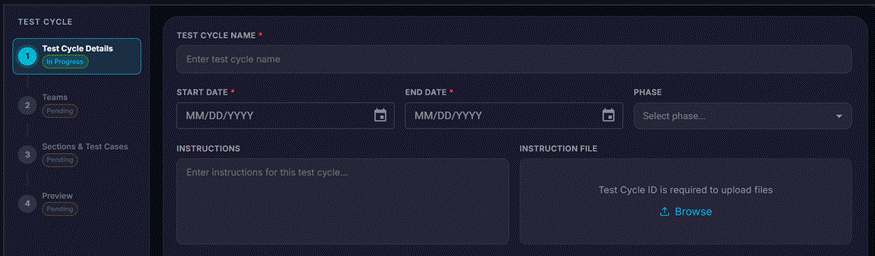
Step 1 — Test Cycle Details
Enter the basic information for the cycle:
- Name — a clear, descriptive title for the cycle (required).
- Start Date and End Date — the planned execution window (required).
- Phase — optionally link the cycle to an In Progress project phase.
- Instructions — free-text guidance for testers (optional, can be added later).
- Instructions File – File with instructions to be used for test cycle execution
- Fill in the required fields.
- Click Next to save the cycle and proceed to Step 2.
Note: The cycle is auto saved as a draft as soon as you click Next on Step 1. You can return to it later to complete Teams and Sections.
Step 2 — Teams
Organise your testers into named Teams. Teams are then assigned to Sections in Step 3.
- Click Add Team to create a new team and give it a name.
- Add team members from the Project user list.
- Add as many teams as needed. Each team can contain multiple members.
- Use the Edit (pencil) icon to rename a team or change its members.
- Use the Delete (trash) icon to remove a team.
Note: Teams created here are specific to this Test Cycle and do not appear in other Test cycles.
Step 3 — Sections
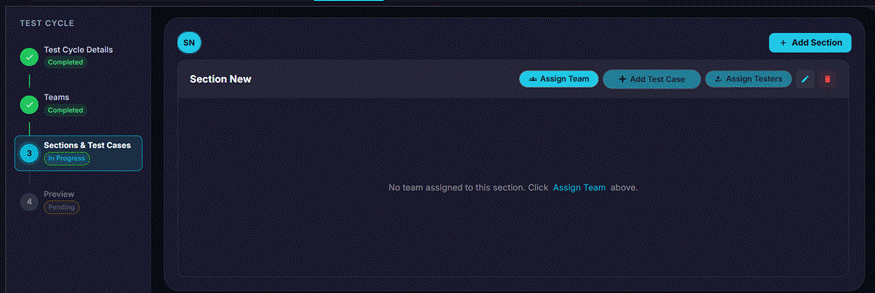
Sections group test cases within the cycle. Each Section is assigned to a Team and one or more Testers.
- Click Add Section to create a new section and give it a name.
- Add test cases (scripts) to the Section using the test case selector.
- Assign a Team to the Section.
- Assign individual Testers from the team to the Section.
- Repeat for as many Sections as required.
- A section can contain test cases from any epic or module in the project.
- Each tester assigned to a section will see all the test cases in their execution queue.
- Only published Test Cases are available
- You can Edit a Section details
- To Delete a Section, delete the Test cases in it and then delete the Section
Step 4 — Preview
Review the complete cycle configuration — details, teams, and sections — before finishing.
1. Verify that all teams, sections, and testers are correctly configured.
2. Click Launch to publish the cycle and make it visible to testers.
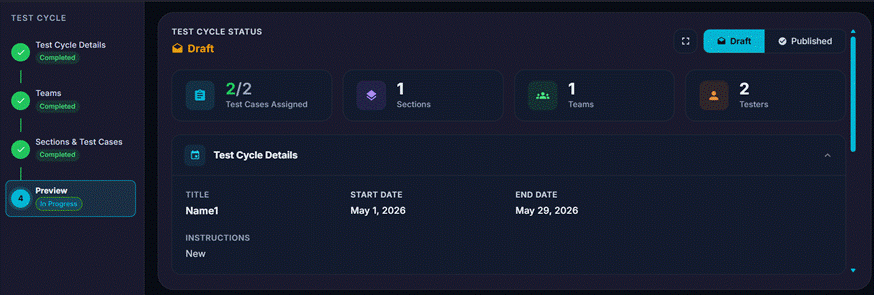
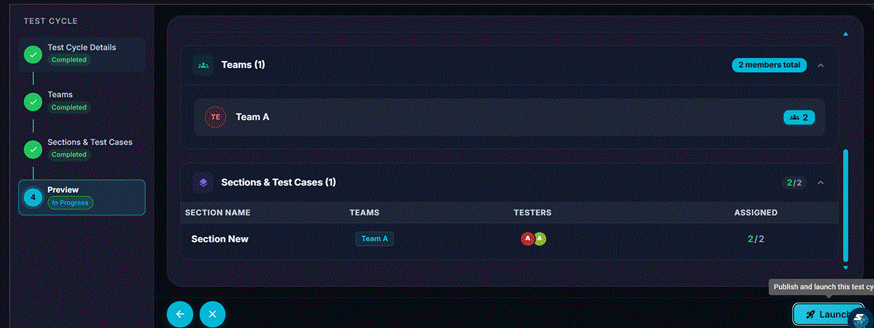
Testers will be notified of their Test Case assignments in a Test Cycle by email once a Test Cycle is published.
6. Editing a Test Cycle
Open the row menu (⋮) and choose Edit to reopen the wizard. You can update:
- Cycle name, dates, phase, and instructions (Step 1).
- Team membership — add or remove team members (Step 2).
- Sections — add, rename, or delete sections; change test cases, teams, or tester assignments (Step 3).
Note: Do not remove a section that is currently being executed.
7. Executing Test Cases (Tester View)
Testers see only the Test Cycles and Sections they have been assigned to. The execution workflow is as follows:
- Open the Test Cycles tab and locate your assigned cycle.
- Click View to open the cycle summary.
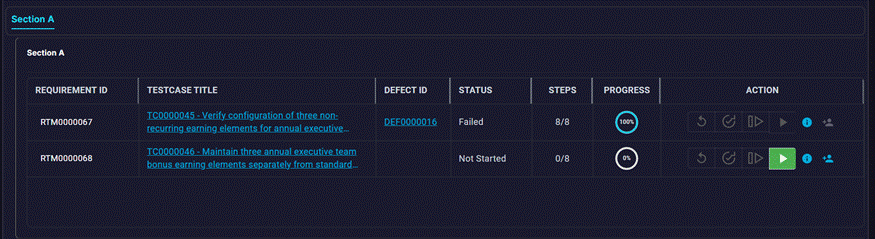
- Select the Section assigned to you to view its test cases.
- Click on the icons in the Action column to start execution.
- Click on Start to begin execution of a test case
- Click on Resume to continue testing
- Click on Restart is you want to start all over again
- Click on Re-Verify if a Test case that has been executed needs to be executed again
- For each test step, review the expected result and enter the actual result.
- Set the step status: Passed, Failed
- User can capture notes for every step during execution and Feedback at the end of test case execution as well
- If a step fails, log a Defect before proceeding.
- Repeat for all steps, then close the panel and move to the next test case.
Step Statuses
| Status | Meaning |
| Passed | The step produced the expected result. |
| Failed | The step did not produce the expected result. Log a defect if required. |
8. Logging Defects
A Defect can be logged directly from a failed test case within the execution panel.
- Mark a test step as Failed.
- Click Create Defect (shown when a step is failed).
- Fill in the defect title and any additional details.
- Save the defect. It is linked to the test case and the Test Cycle.

Note: If your project settings require mandatory defect creation for failed steps, you will not be able to proceed until a defect is logged.
Defect details can be seen alongside the failed Testcase
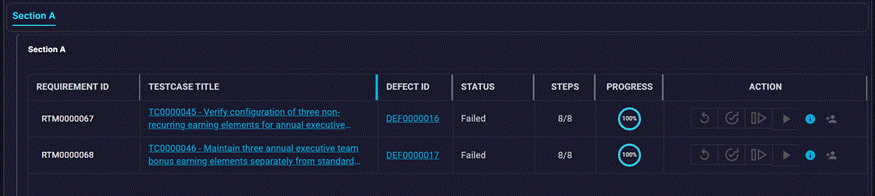
Logged defects appear in the Defects section of the project and can be tracked through to resolution.
9. Attestation
Some projects require testers to attach an attestation file — a screenshot or signed document — as evidence that a test was executed correctly.
- If attestation is mandatory, you will be prompted to upload a file before marking the test case as complete.
- Supported file types depend on your project configuration.
- Uploaded attestation files are stored against the test case execution record and visible to test managers.

10. Tracking Execution Progress
Test managers can monitor the real-time progress of a Test Cycle from the list or from the cycle summary view.
- The Executed / Assigned counter shows how many test cases have been run out of the total assigned.

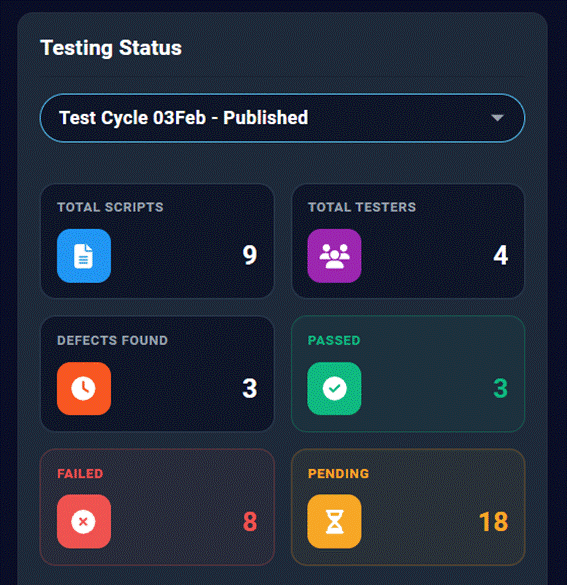
- The Project Dashboard shows aggregate Test Cycle statistics including execution status charts.
11. Related Areas
| Area | How it relates to Test Cycles |
| Test Cases | Source of Test Cases assigned to sections within a cycle. |
| Phase | Test Cycles can be linked to an In Progress phase to scope execution. |
| Defects | Logged from failed Test Cases; linked back to the Test Cycle. |
| Project Dashboard | Shows Test Cycle execution charts and progress summaries. |
| Testcase Library | Master Test Cases that can be imported to a Project and later added to a cycle. |
| Backlog / RTM | Requirements that Test Cases verify; traceable through to cycles. |