Requirements Traceability and Test Case Traceability Guide
User Guide
SaaSMap
Introduction
Traceability is a key part of effective project and quality management, ensuring that requirements are clearly linked to the test cases created to validate them. Test Case Traceability and Requirements Traceability help teams confirm that all business and functional requirements are properly covered, while also making it easier to identify gaps, overlaps, and changes throughout the project lifecycle.
This guide explains how traceability is established and managed within the system, helping users maintain clear relationships between requirements, test cases, defects and action items. By using traceability effectively, teams can improve coverage, strengthen validation, and support better project control and audit readiness.
.
Traceability
To be able to view Parent/Child relationships between requirements, a Project must have been created with valid requirements and the Hierarchy between the requirements must be setup properly.
Hierarchy classifies how a Backlog requirement relates to other requirements in the same project. It can be Blank (standalone, not in a parent/child structure), Parent (a container or umbrella requirement that can have children), or Child (a sub-requirement linked to a specific Parent via the parent requirement field). Use Parent for broad capabilities or work packages; use Child for detailed items that roll up to that parent. Requirements created from SOW are typically set to Parent and hierarchy is locked for those records
Navigate to the ‘Traceability’ tab of the selected Project to view the details of Parent requirements and Child Requirements.
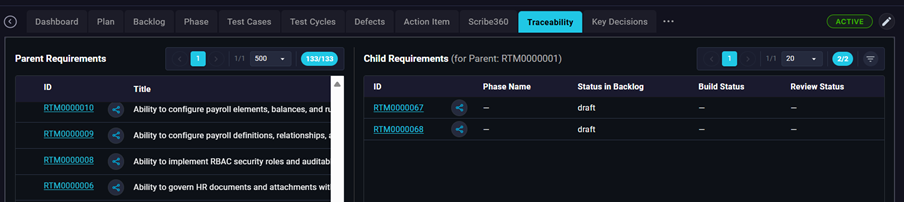
To view the Child requirements click on the ‘View Child’ icon in front of the Parent requirement ID.
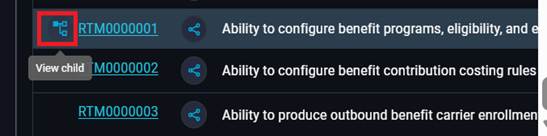
So for example, clicking on this icon will load all the Child requirements for ID RTM0000001 in the Child Requirements section of the page.
Clicking on the ‘Open Mindmap’ icon next to the Requirement ID will open the mindmap for that requirement.
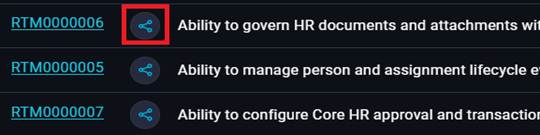
So in this case it opens up this view
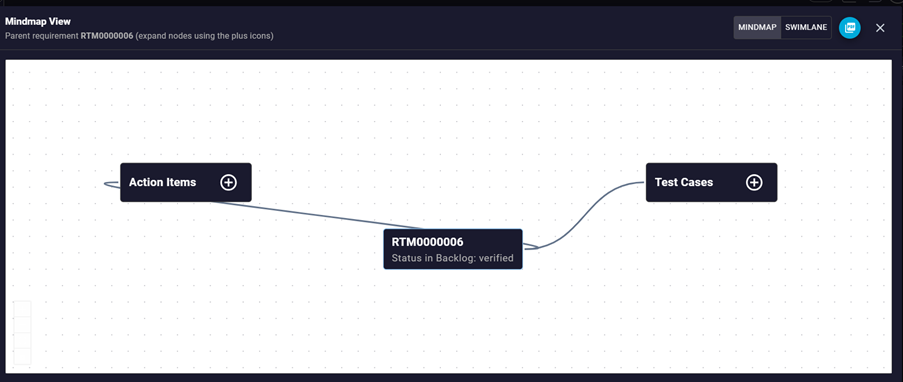
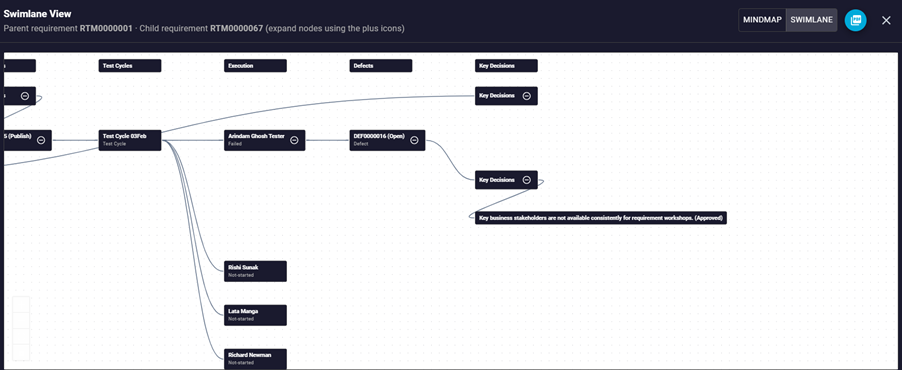
You can switch to the Swim Lane view by clicking on the ‘SWIMLANE’ option in the top right. You will get the following view.
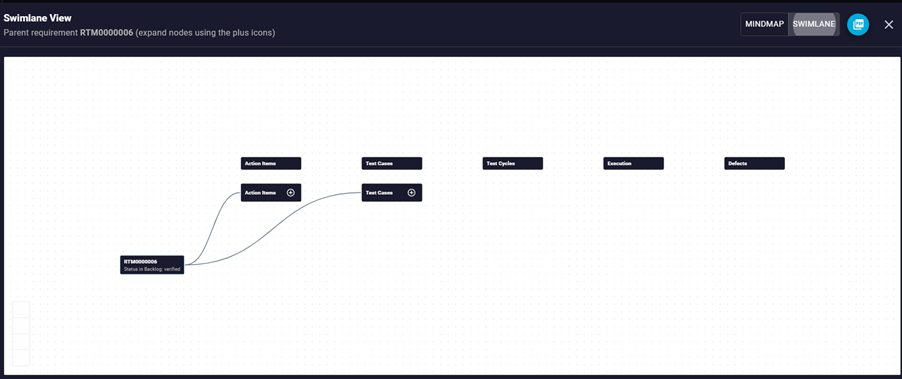
You can click on the plus symbol to expand the tree under each of the nodes.
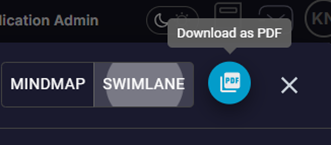
User can also download and save a copy of the mindmap by clicking on the “Download” icon on the top right hand side.
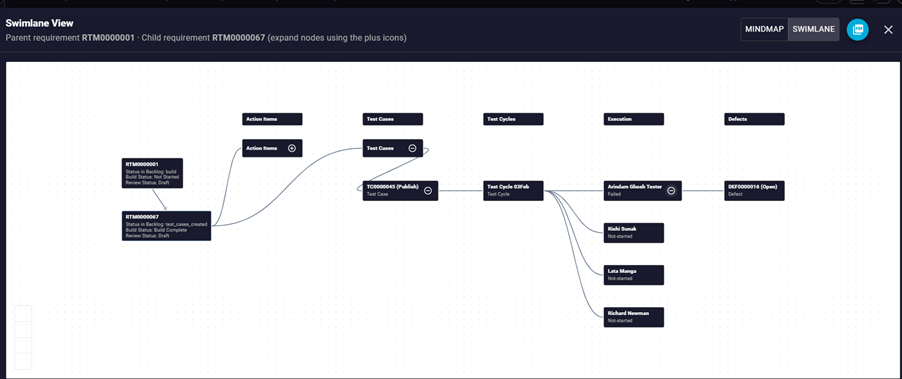
See below an example of tracing a requirement, linked to a generated Test Case which has been published and added to a Test Cycle. It has been assigned to multiple Testers and during Execution one of them has raised a defect. All of the details along with their ids are clearly traceable in this view.
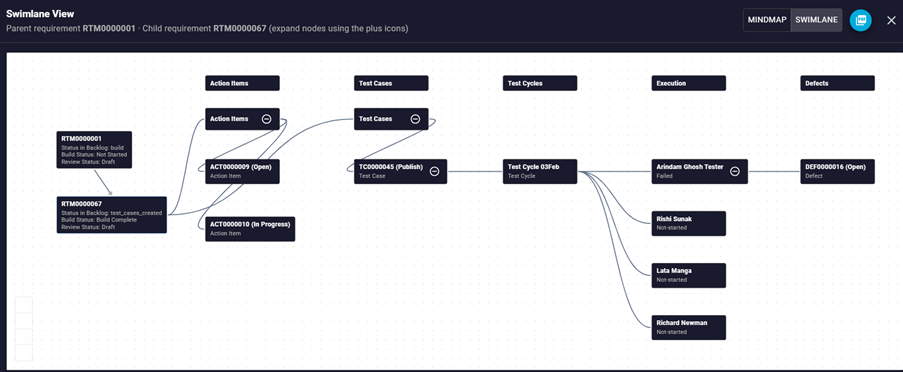
Continuing to build on this, if user wants to view the Action items linked to this requirement, user can click on the plus symbol next to the Action Items and view the linked Action Items. See below.
We can extend the use case further. If the Defect has a Key Decision linked, then we can view the details of the Key Decision along with its status. See below
While all the use cases above started with the Requirement being the starting point, you can also view the traceability details for a Test Case. Navigate to the ‘Test Cases’ tab for a Project and click on the ‘Show mindmap’ icon next to the Test Case ID. See below.
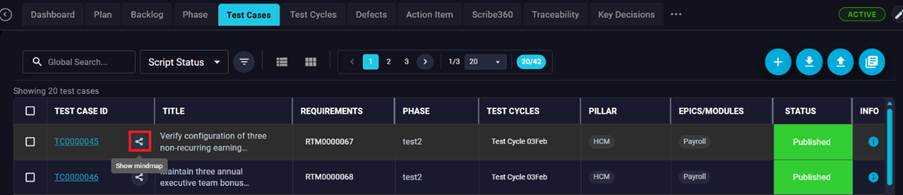
Clicking on the icon brings up this view.
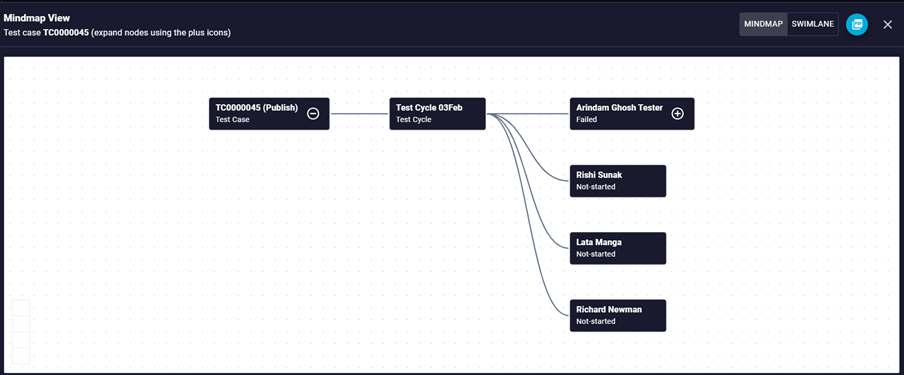
User can switch to a Swimlane view and can also download and save the details here.
Mouse over the Test Case ID to view the Test Case title details.
